Sam’s Baby Quilt

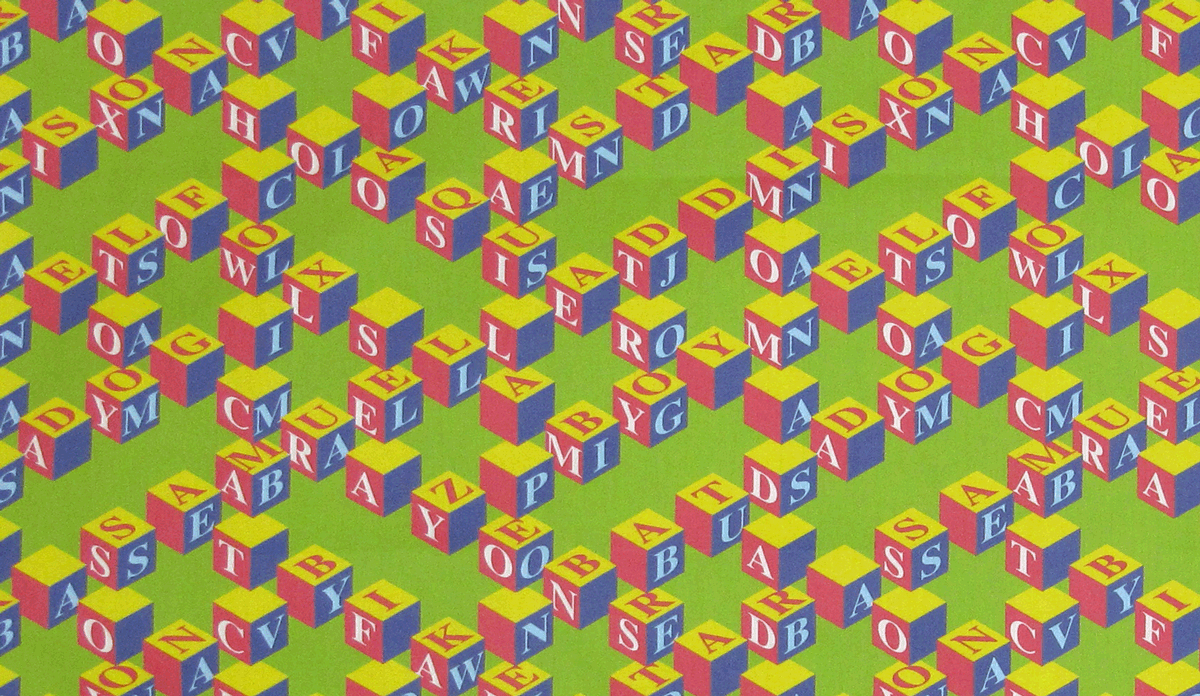
Some friends had a baby recently and I knew it was a great excuse to make a quilt.  I’d created a fabric design of interlocking blocks which could be personalized with the baby’s name, so I used that–Samuel Addison–as well as other words with significance to the parents, like Hoosier, baseball, Sox and clown, in creating the fabric design.

Here’s a portion of the printed fabric.

Continue reading

Kauai Waves — The Finished Quilt

In a previous post I talked about the improvisational approach I took to create a quilt from two silk scarves I bought while on vacation in Kauai.

That previous post showed some of the different layouts I’d tried–both on the computer and on my design wall–for all the pieces I’d sewn together.  The picture on the right shows nearly the final design.  Just a few more pieces were added for the final quilt.

The completed quilt top is pictured below. Continue reading

Kauai Waves – Part 1

Last fall my husband and I spent a fabulous week on Kauai–seeing the sites, snorkeling, golfing, soaring in ultralights (that’s me in the back)…

One day we went to see all the art galleries in Hanapepe and stumbled into The Art of Marbling Gallery which features marbled sarongs and scarves by Becky Wold and amazing wood bowls by Rob Bader.  My husband, the woodworker, was captivated by the turned bowls while I loved the scarves.  When Becky heard I was a quilter, she brought out a couple of scarf “seconds” which didn’t meet her standards.  I bought them, knowing they’d make a great quilt with memories of Kauai.  Here are the scarves–they really remind me of the waves in Kauai. Continue reading

A Quick Way to Develop a Color Palette (Photoshop Elements)

Sometimes when creating a design (fabric or otherwise) it’s helpful to work with a fixed palette of colors.  The inspiration for a color palette can come from anywhere, and I find that photos are often a great source of color palettes.  In this post, I’ll show how to quickly create a color palette (called a color table in Photoshop) from a photo.  You can then use the color palette to create your own designs.

This post compliments a couple of my previous posts where I talked about how to color-reduce a photo in Photoshop Elements, and then how to generate a Color Table from the color-reduced photo and use the color table to create coordinating designs. Continue reading

Lin-Z’s First Quilt

My young friend Lin-Z had never made a quilt.  She’d never used a sewing machine or an iron.  But she likes doing art projects, so a quilt seemed like a perfect project while she and her family were visiting us for a week.

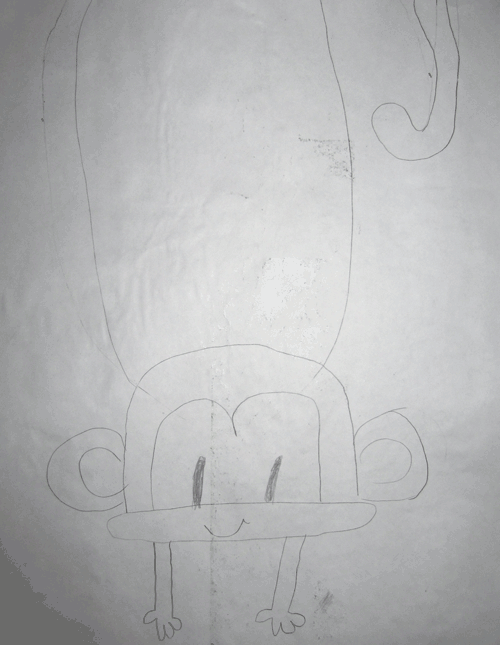
Lin-Z likes butterflies and monkeys, and she chose a monkey as the subject of her quilt.  She started by drawing the monkey on a piece of freezer paper (here’s the first draft).  Then she labeled and cut out all the pieces. Continue reading

Why I Make Quilts for the Alzheimer’s Art Quilt Initiative

About a week ago I was featured on the AAQI blog after Ami Simms asked me about the artist’s statements for my recent donation quilts.  Here’s what I wrote:

Here’s a bit of the reason I make quilts for AAQI.  Both my parents died from Alzheimer’s disease, my father in 2004 and my mother in 2006.   Continue reading

Using Colorways in Photoshop Elements

In this previous post (I know it’s been a while–golf season has arrived) I talked about how to color-reduce a photo and then change the colors to create different colorways of the same image.  In this post I’ll show how you can use the colorways to create coordinating designs.

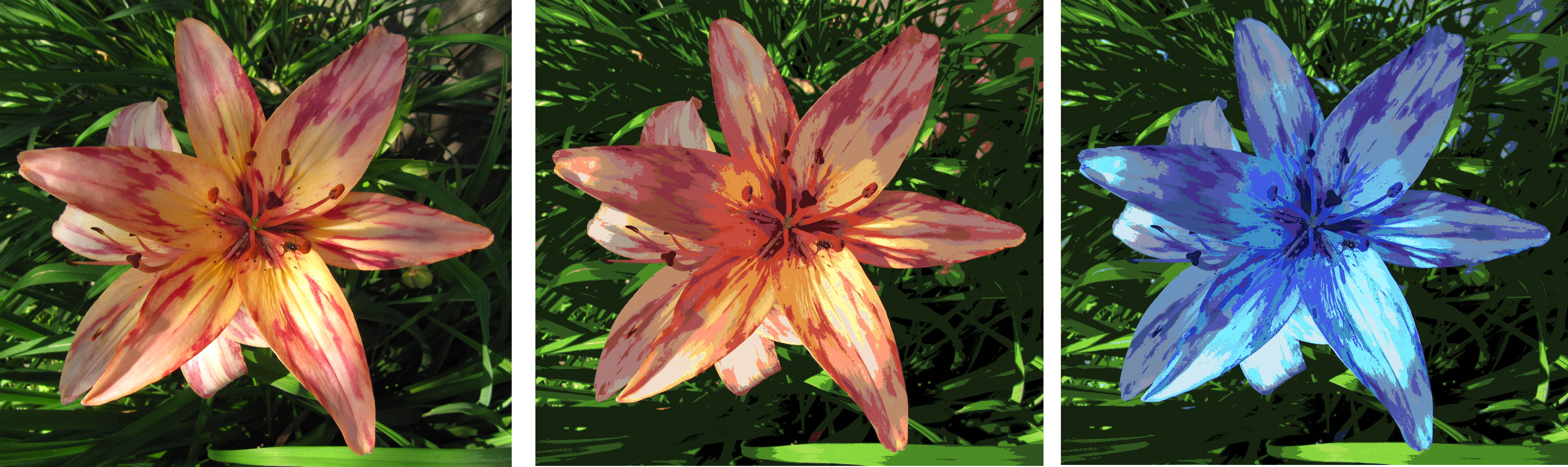
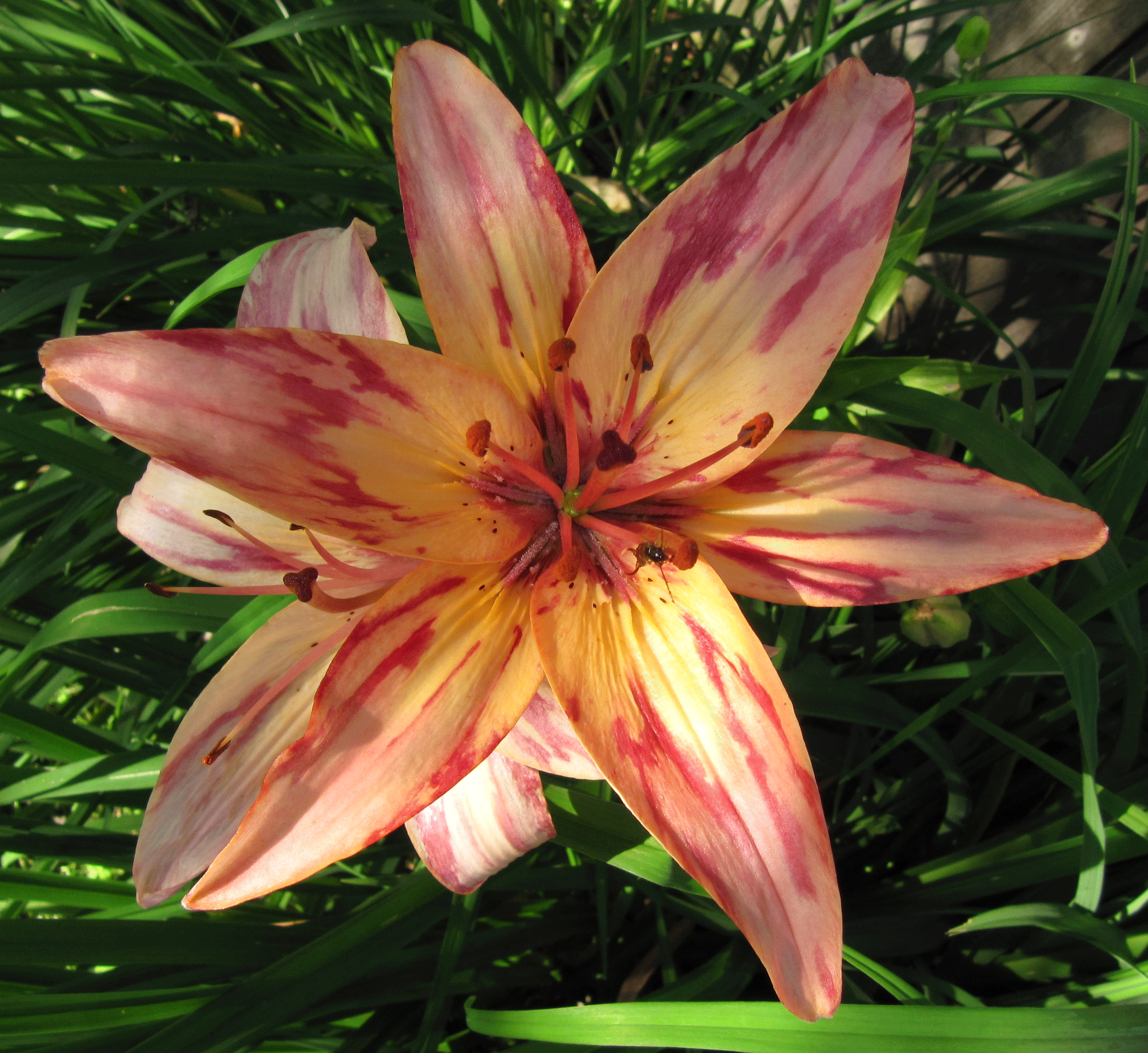
Below is the daylily photo I used in the earlier post (on the left), along with its color-reduced version (middle) and the purple colorway (right).

SAVING A COLOR TABLE

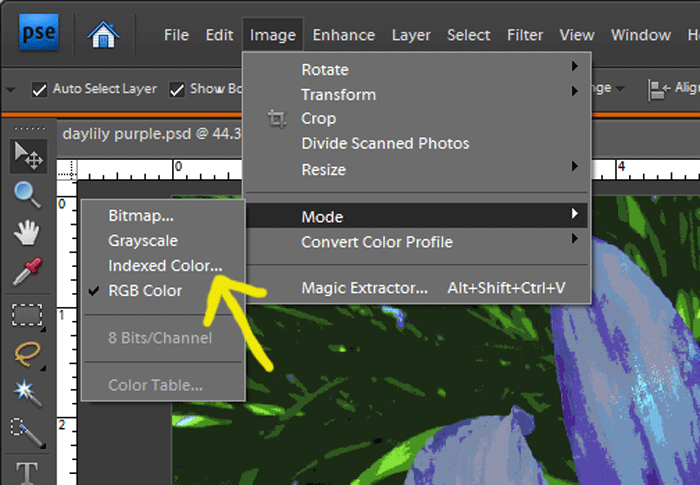
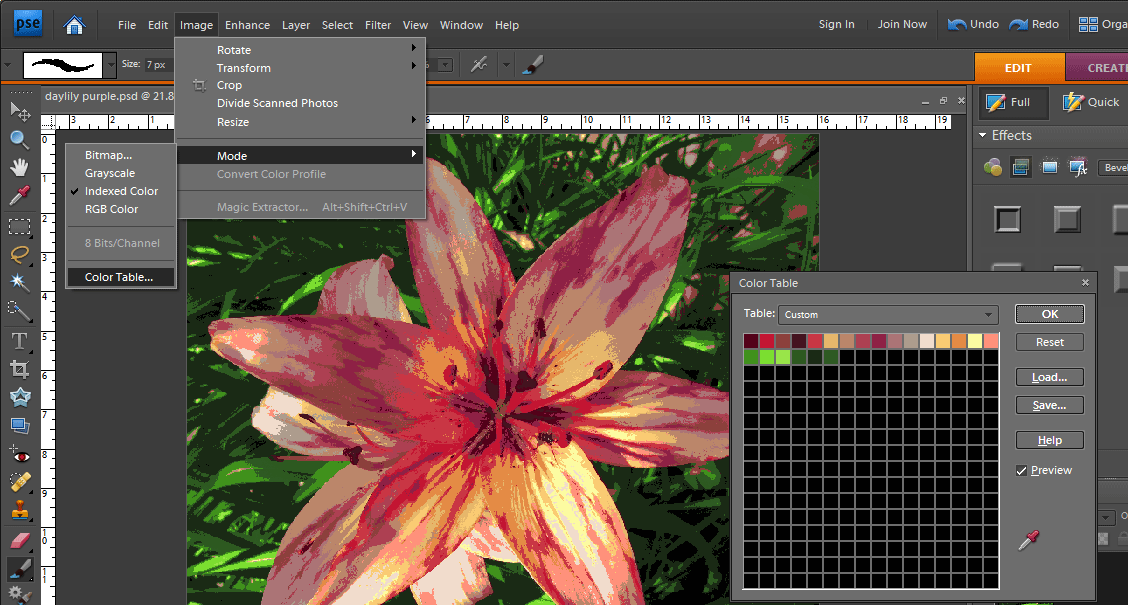
1.  I’m going to start with the purple image, opening it in Photoshop Elements.  Once it’s opened, from the menu  click Image –> Mode  (as shown below).   If the check mark is in front of the “Indexed Color” option, skip ahead to step 3.

2.  In this example the image was in RGB mode, so I need to change it to Indexed Color mode.  Simply click on the “Indexed Color” option shown in the picture above.  This will open up the “Indexed Color” pop-up menu show here.  Select the “exact” option from the Palette drop-down, and the click OK.

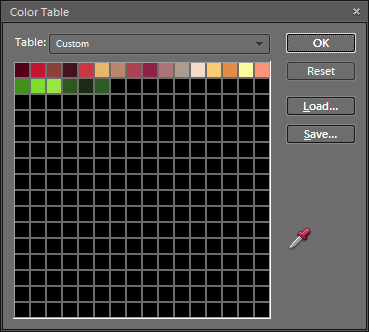
3.  Now the image is in Indexed Color mode.  To see the colors in the image, go to the menu and select Image –> Mode –> Color Table.

4.  This opens the Color Table, shown here.  I want to save this color table so that I can use these colors when creating other images.  Click on the “Save” button and then give the file a name.  Remember where you save it, and note that the file has an extension of “.ACT” for Adobe Color Table.  I named my file purple daylily.act

USING A SAVED COLOR TABLE

1.  Now I can use my Purple Daylily colors to create a new image.  I’ll start with a blank file (File –> New –> Blank File).

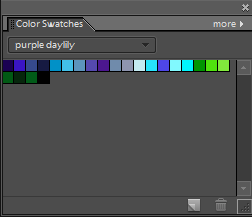
2.  From the menu, click Window –> Color Swatches to bring up the color swatches panel with a default set of colors (shown here).  Click on the “More” option and then select “Replace Swatches” at the bottom of the list.

3.  The “Load” window opens so I can navigate to the folder where I saved my color table.  Note that the “Load” window defaults to files of type Swatches (*.ACO) — change this to files of type Color Table (* .ACT).  I’ll select the Purple Daylily.act file and click the Load button.

4.  The Color Swatches window now shows only the colors from the Purple Daylily file.  Clicking on any of the colors in the Color Swatches window makes it the foreground color.

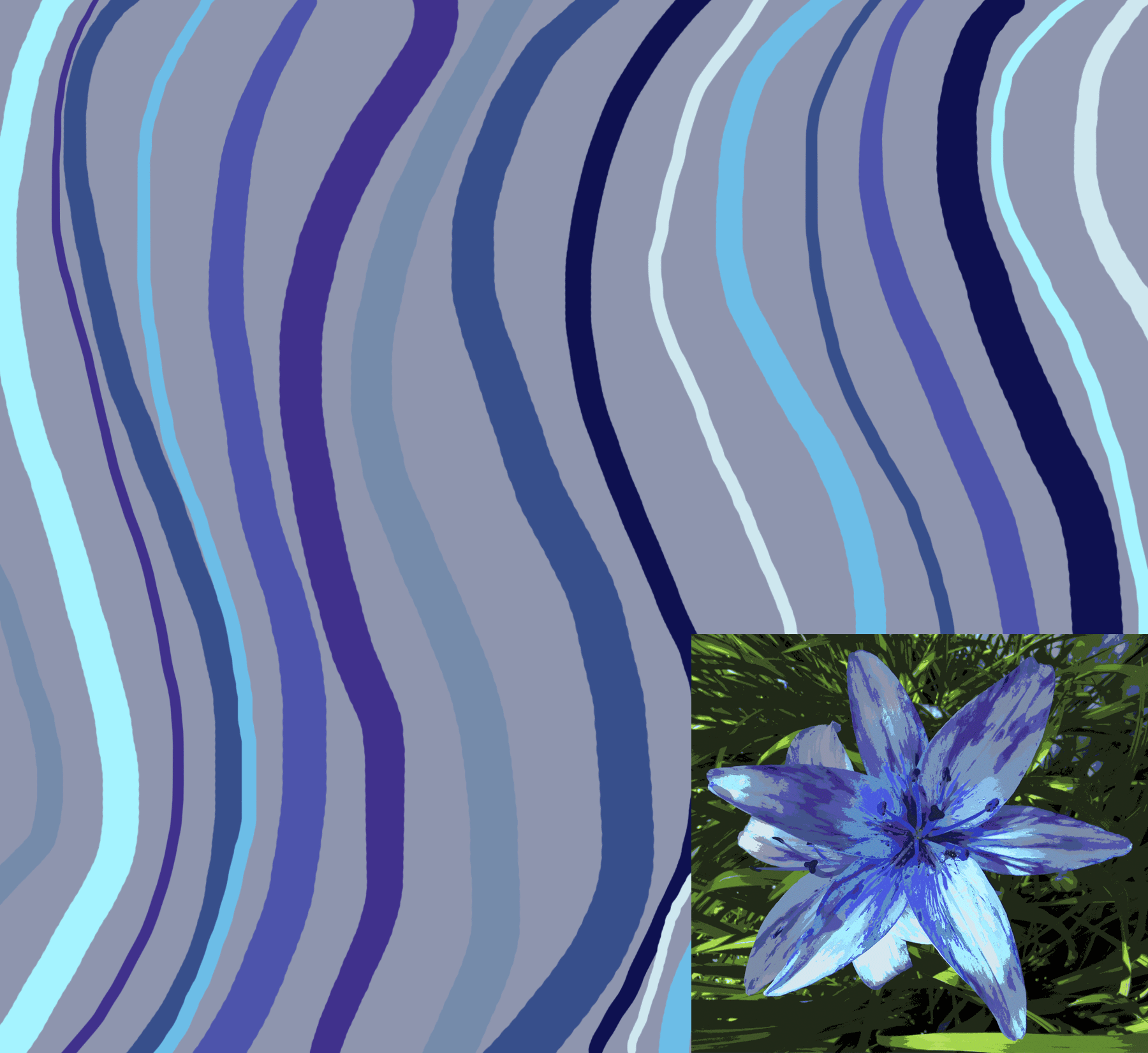
5.  Going back to the new, blank file, I’ll quickly create a coordinating stripe to go with the purple daylily photo.  I selected one of the lighter purple-grays from the Color Swatches window, then using the Paint Bucket, I filled in the background of the new file.

6.  Using the brush tool, and selecting different colors from the Color Swatches, I added a bunch of wavy stripes to get this coordinating design.

And here’s another design example.

Mere color, unspoiled by meaning, and unallied with definite form, can speak to the soul in a thousand different ways.   Oscar Wilde

Colors, like features, follow the changes of the emotions.   Pablo Picasso

Fading Memories

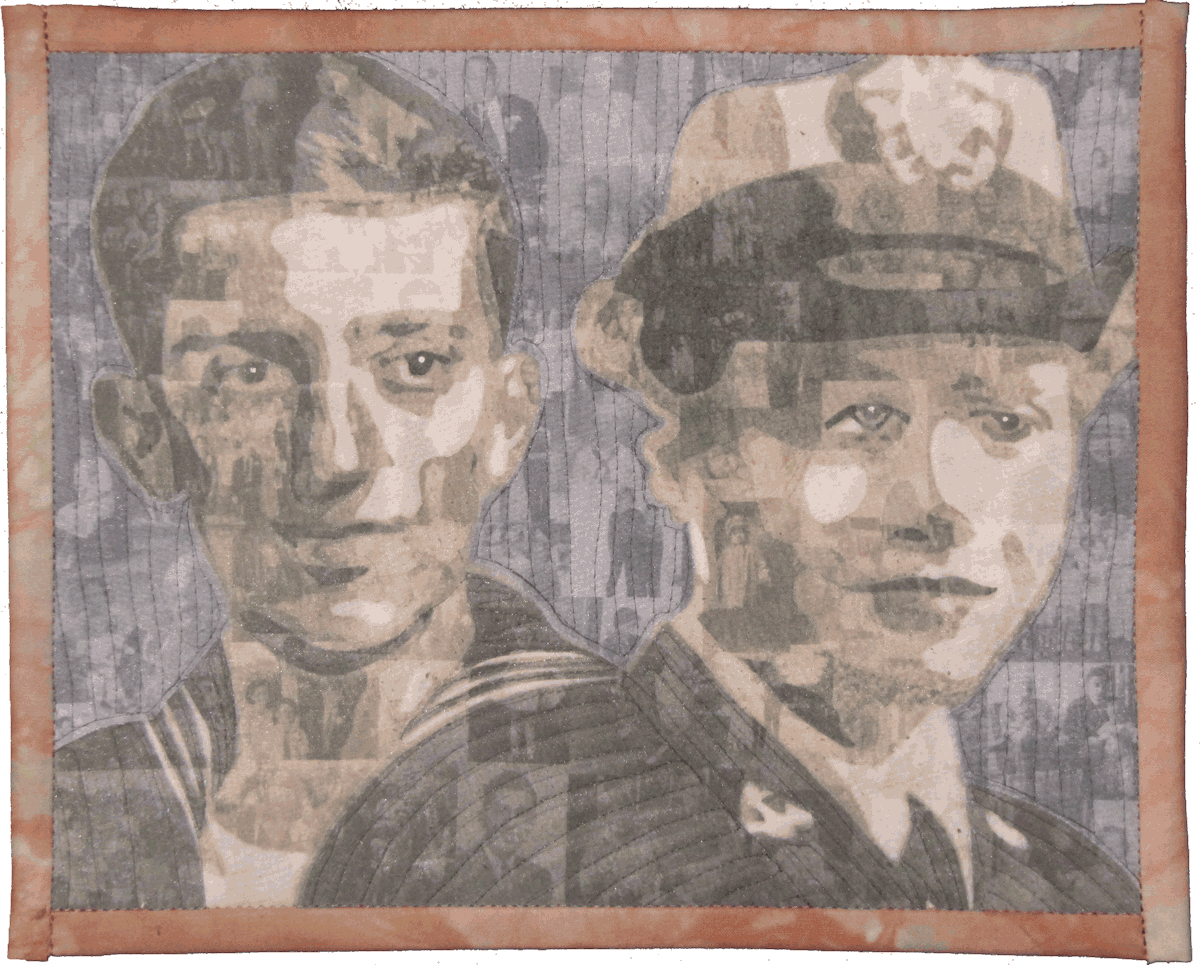
I made Fading Memories last year as a donation quilt for the Alzheimer’s Art Quilt Initiative, which is a non-profit group raising money for Alzheimer’s research (over $520,000 so far!).

My parents both suffered from Alzheimer’s. This quilt portrays them as young adults when they each served in the Navy in World War II.  The fabric in the quilt is made from photos taken over the course of their lives — representing all the memories that faded as the Alzheimer’s progressed.   Using family photos, I created a montage, and then printed the montage in five different values (light to dark) on fabric.  With this fabric, I created the ‘cut out’ portraits of my parents from their Navy portraits.

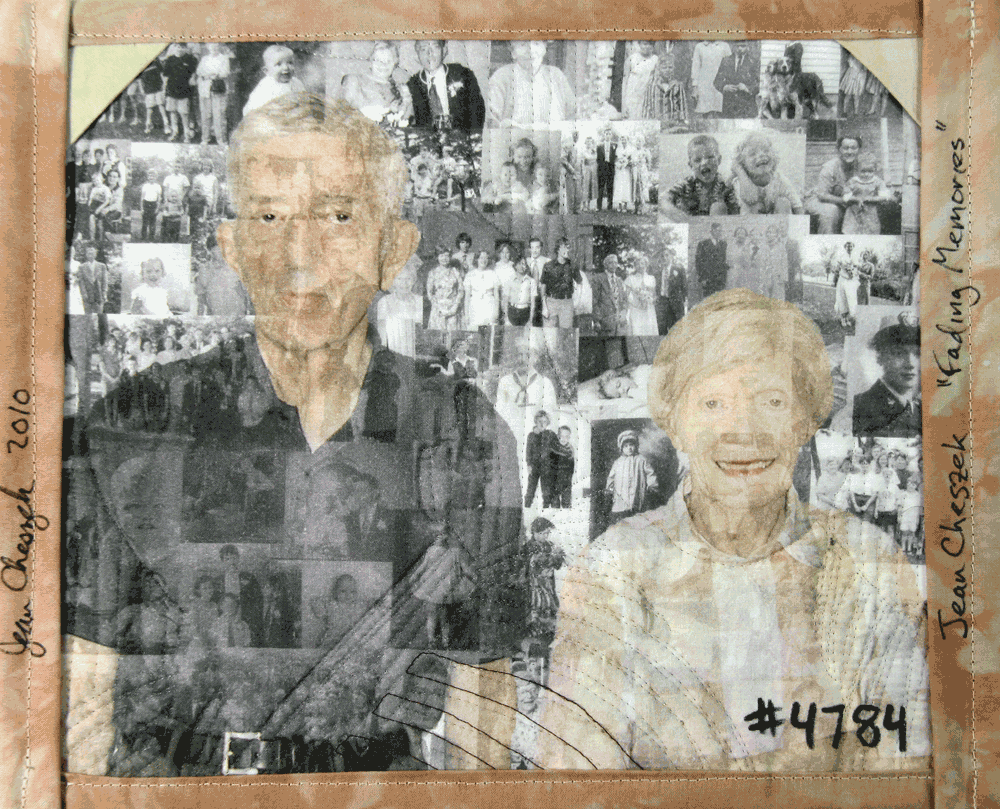
The back of the quilt shows the photo montage along with a more recent photo of my parents.

Fading Memories – back

This quilt is my post for the Spring 2011 Blogger’s Quilt Festival.

Color Reducing a Design Using Photoshop Elements

In a previous post I talked about why you might want to color reduce a design, even in the age of digital printing.  In this post, I’ll go through the steps to color reduce a photo in Photoshop Elements.  I’ll also note the differences for Photoshop since there are some variations.

The basic process is just a couple of steps:

  • convert the photo to the ‘indexed color’ mode with 256 colors
  • reduce the number of colors to around a couple dozen by picking the main colors from the photo

Steps for Color Reducing a Photo

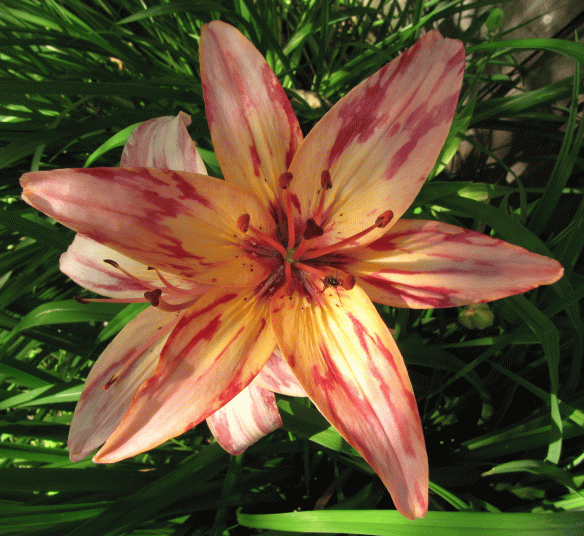
1.  Here’s the photo I’ll start with.  Note that this photo is in RGB color mode.  It’s always a good idea to work on a copy of your image and keep the original image unchanged.
2.  The layer needs to be unlocked.  Often when first opening a file, the layer will be locked (indicated by the padlock icon on the layer–circled here.)  To unlock the layer, click on the padlock icon in the menu (arrow) and the padlock next to the layer will go away.

xxxx

3.  The next step is to convert the photo to what Photoshop calls the Indexed Color mode.  If your file has multiple layers, they will be merged when you convert it to Indexed Color mode.  From the menu, select the command Image–> Mode –> Indexed Color as shown below.  This will bring up the pop-up box outlined in green below.  Make sure the settings are set as follows:
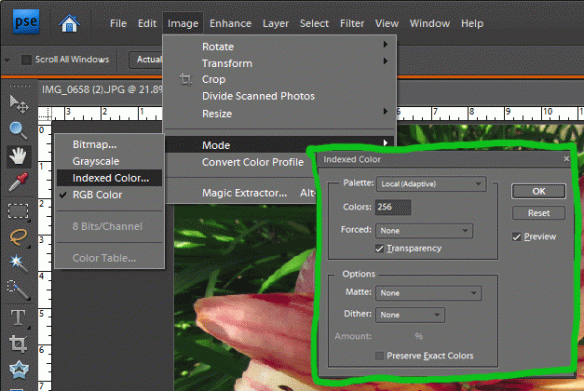
  • Palette–Local Adaptive
  • Colors–256
  • Forced–None
  • Preview–Checked
  • Dither–None

DO NOT CLICK OK.

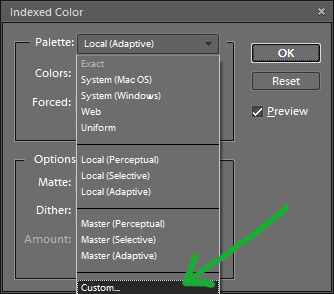
3a.  Without closing the “Indexed Color” pop-up box, click on the Palette drop-down list again and change the selection to Custom (see picture to the right).  Note for Photoshop only:  sometimes the “Custom” option is grayed out.  If this happens, reselect “Local(Adaptive)” and change the number of colors (say to 255) and then change the Palette again to “Custom”.

xx

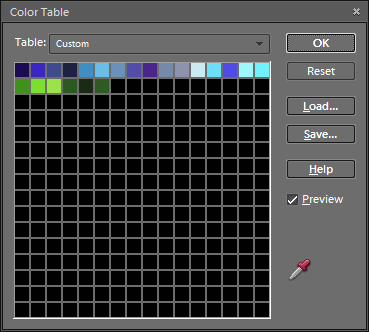
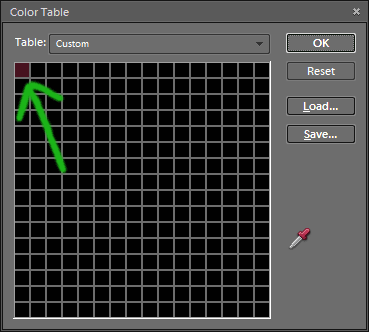
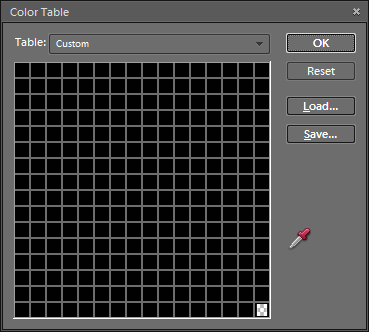
4.  This will open up a color table (shown  to the right) with 256 colors from the photo.  The photo has been reduced to these 256 colors, but we want to reduce the number of colors much further.  Do NOT click OK.

5.  Next is to select all the colors in this color table and change them to black.  To do this, click on the color in the upper left corner of the color table, and drag your mouse down to the lower right corner so that all the color boxes are selected.

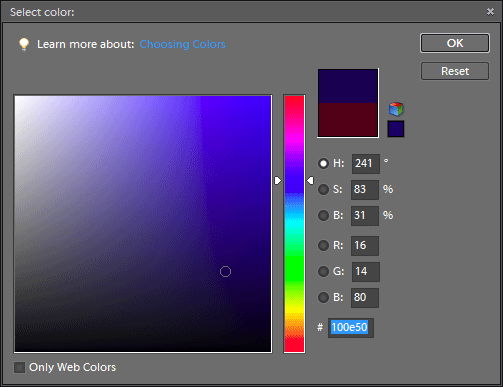
5a.  This opens the color picker window shown here.  Select black for the color, either by clicking in the lower left portion of the color window, or by typing 0 (zero) into the R and G and B boxes.  Then click the OK button twice to close the color picker.  Do NOT click OK to close the color table.
xx

6.  Now the Color Table is filled with black squares.  We need to replace some of these black squares with the colors we’ll have in the final color-reduced image.

xx

xx
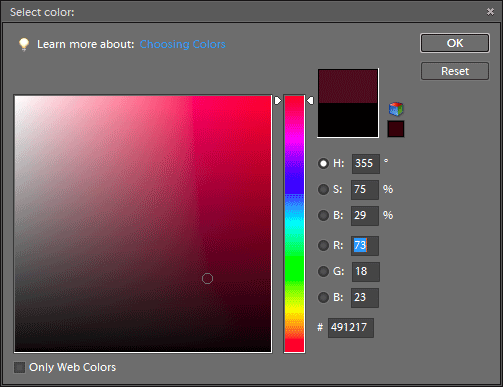
7.  Click on one of the black squares in the color table, and the color picker window opens again.  With the mouse, go the to main photo and click on one of the colors you want to keep.  This color will then be in the color picker window.

xx

xx

7a.  Click OK in the color picker window and the new color will replace the black square in the Color Table.  Do NOT click OK to close the Color Table.

8.  Repeat steps 7 and 7a to select additional colors from the photo.  Using more colors gives a more accurate representation of the photo, but also makes changing colors later more work.

xx

9.  Here is the color table with 22 colors selected from the photo.  When you think you’ve selected enough colors, click OK to close the Color Table.  Since the Preview button was checked in step 3, this will show a preview of your color-reduced photo.  Unfortunately, if you don’t like the results, the only thing to do is select Cancel and start over from the beginning.  If you like the results, click OK and your photo is now color reduced, as shown below.

Note:  In Photoshop Elements (and Photoshop) many image editing functions don’t work if your image is in Indexed Color mode.  To make changes (other than swapping colors which is described below) you should change the image back to RGB color mode.  This is done from the menu:  Image–> Mode–> RGB Color, as shown below.

Swapping Colors in a Color-Reduced Photo

Now for the fun part…changing the colors.

1.  If your file is back in RGB Color mode, first change it to Indexed Color mode:  Image–> Mode–> Indexed Color.  In the pop-up box, make sure the Palette is set to Exact (see picture on right) and click OK.  Using Exact for your palette loads the colors which you picked when color-reducing the photo.

xx

xx

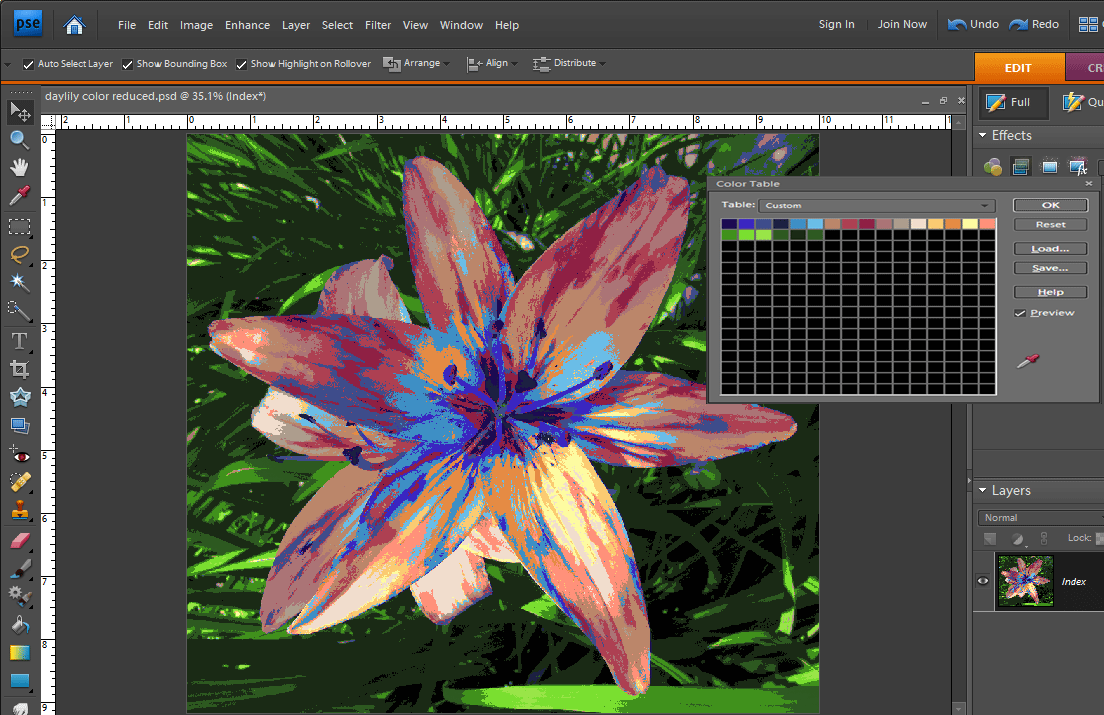
2.  With the image in Indexed Color mode, open the color table:  Image–> Mode–> Color Table, and the color table with your custom colors will pop up.

3.  Make sure the Preview box in the Color Table pop-up is checked.  Click on one of the colors in the Color Table that you’d like to change, and the color picker window opens.  Select the new color and click OK.

4.  With the Preview box checked, you’ll see the changes to your picture as you change the colors (see below).  Repeat step 3, selecting additional colors to change until you’re satisfied with the result.
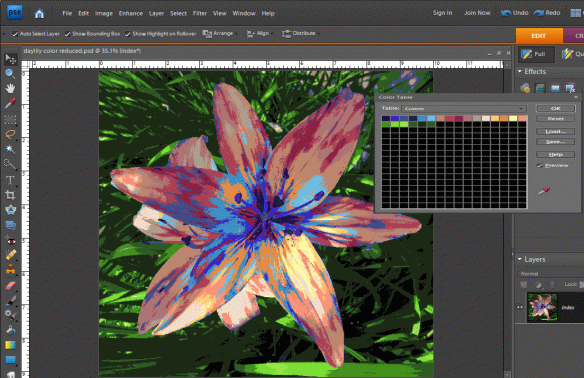
5.  Here is the color table after I’ve changed all the flower colors to blues and purples, but I left the greens unchanged

xx

xx

xx

xx

And here is the Purple Daylily.
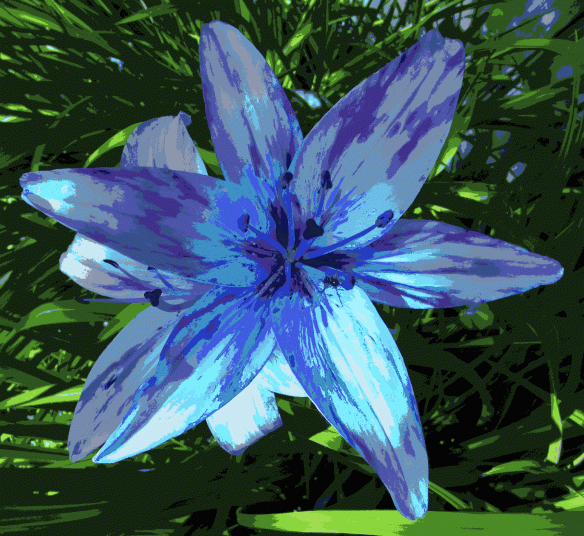
Here’s a comparison of the original photo (left), the color reduced photo and the re-colored photo.

“If you see a tree as blue, then make it blue.”– Paul Gauguin

“Oh, I love red. I”m very loyal to my colors. I love violet.”–Elizabeth Taylor