Color Reducing a Design — What is it and Why Bother?

Most printed commercial fabrics today are made using some form of screen printing technique.  This requires a separate screen for each color which will be printed.  More colors mean more screens and higher manufacturing costs.  To keep costs down, designs may be color reduced to use fewer colors in the final manufacturing set up.

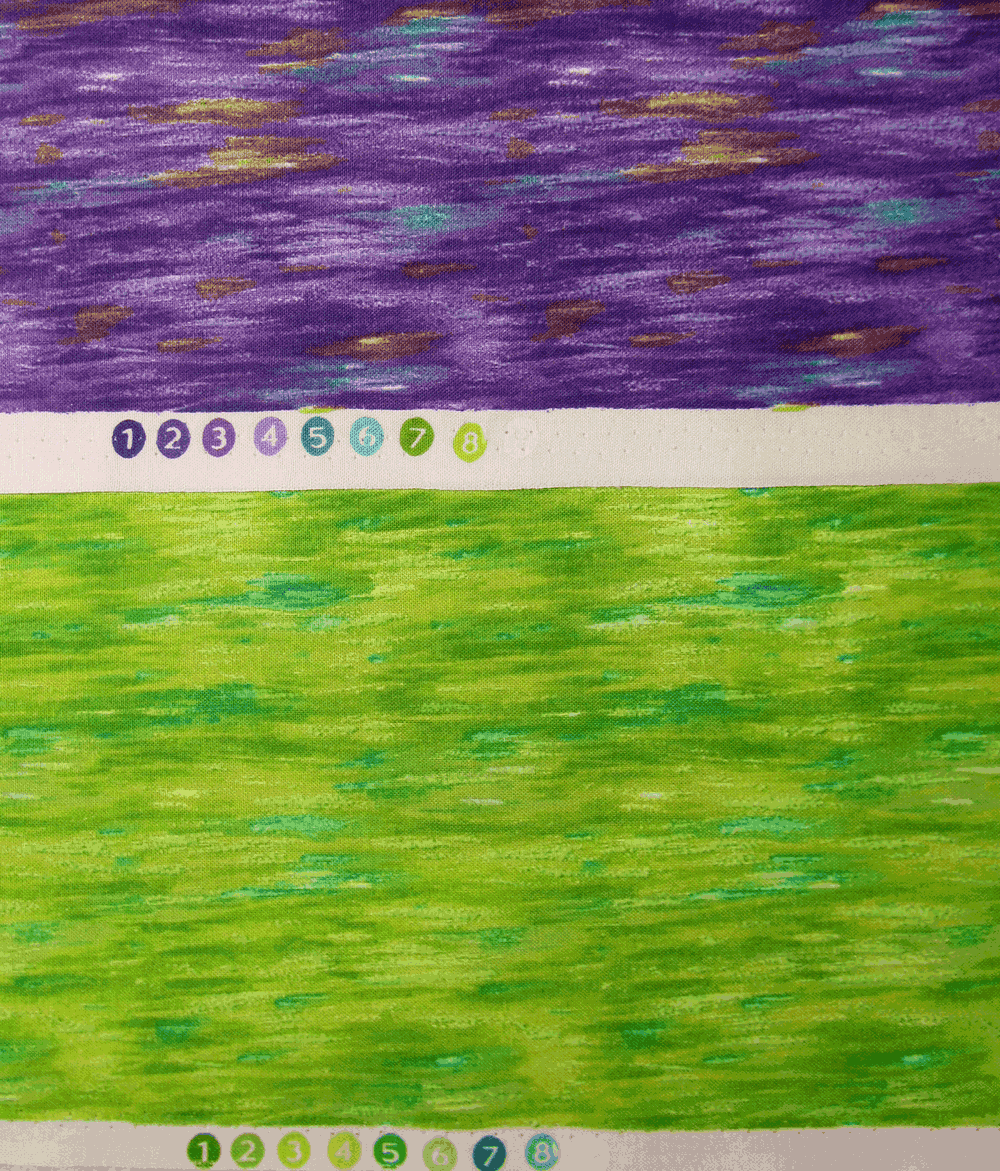
Printed commercial fabrics will often show the colors used in the printing process as numbered circles along the selvage of the fabric.  Shown below are two colorways of the same design from Timeless Treasures.  Each fabric was printed using the same screens, but 8 different colors, and the end results are different, with more contrast in the first fabric.
The design process for a commercial fabric might start with a hand-drawn or hand-painted design which is then scanned into a computer where the design and its repeat are finished.  However, scanning an image is likely to result in thousands of colors–way too many for screen printing.  A big part of the computer side of the design process is to reduce the number of colors to a manageable number–often less than a dozen–without sacrificing the quality of the original artwork.  Once the “color reduction” is done, it’s a simple matter  to change the colors to generate different colorways of the same design.

Digital printing technology allows anyone to print on fabric with virtually an unlimited number of colors.  For many situations, there’s absolutely no need to color reduce a design before printing it with either your own inkjet printer or through one of the on-demand printing services  (see here for some places to print your fabric).

Even though digital printers print with a huge range of colors, there are still some situations when color reducing a design is useful.

Color matching–When printing fabric on an inkjet printer, the colors you see on your computer screen are not always the colors you get on your fabric out of the printer.  This can be frustrating and expensive.

A way to minimize this issue is to create your design using colors which you know how they will print on fabric.  Most of the on-demand printing services offer color swatches and the corresponding digital file so you can see the printed color on fabric compared to the color on your computer screen–here’s an example of Spoonflower’s color guide.  If you’re printing on your own inkjet, you can create and print your own color guide.  When you use colors in your design from your color guide, you can be confident how the colors will print on fabric.

When you start your design with a photo or a scanned image, you might have colors in your design that you aren’t sure how they will look printed on fabric.  Using Photoshop Elements (or other digital editing tools) you can replace colors in the design with known colors from your color guide.  However a photo or scanned image might have thousands of colors, so to make color replacement manageable, the design first needs to be color reduced to a much smaller number of colors.

Colorways and color palettesTwo more reasons to color reduce a design are to create the design in different colorways or to create designs using a common color palette.  I used these techniques in creating the designs for my Echinacea collection.

I started with the ‘focus fabric’ shown below.  This design was color reduced to 64 colors.

Using Photoshop, I selected from the 64 colors in the design to create separate color palettes of blues, pinks and oranges.  Then I replaced all the colors in the design with the blues to get the blue version of the coneflowers (below).  Using this version of the design (now with about 10 colors rather than 64) I replaced the blues with pinks and then with oranges to get the different colorways.

I used the same color palettes to create the stripe fabrics to coordinate with the floral prints.  You can see more fabric designs using these colors here.

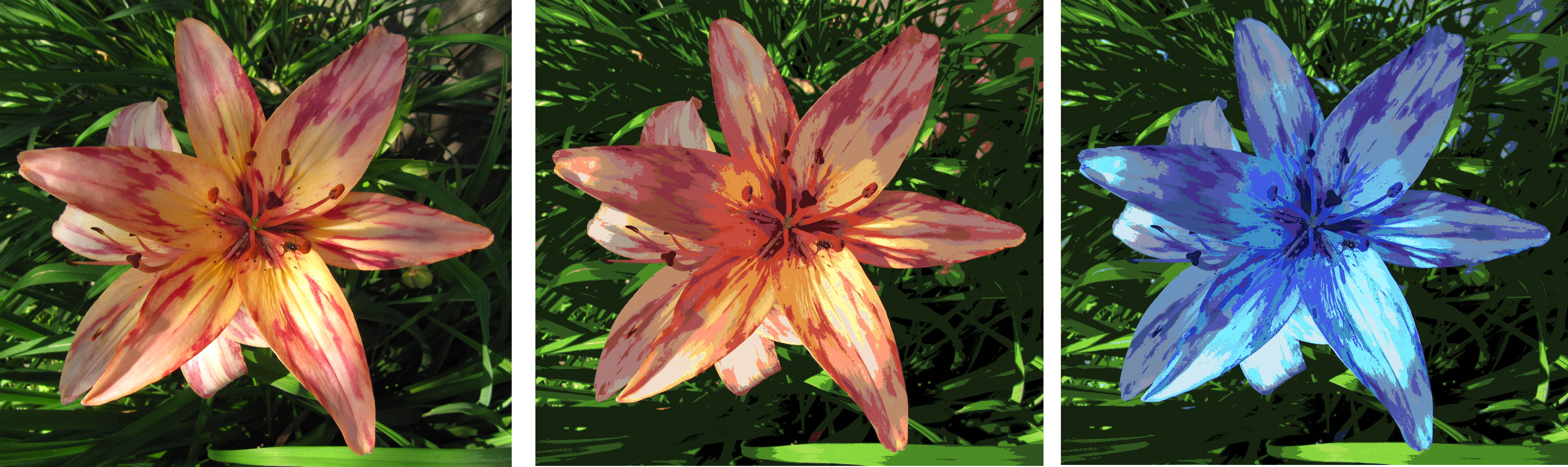
In upcoming posts I’ll discuss how to use Photoshop Elements to color reduce a design.  An example is below–the original photo is on the left, the color reduced design is in the middle, and a recolored version is on the right (zoom in to see the differences).
Dorothy:  What kind of a horse is that?  I’ve never seen a horse like that before! 
Cabby:  No, and never will again, I fancy!  There’s only one of him, and he’s it.  He’s the Horse of a Different Color you’ve heard tell about! 
–from the Wizard of Oz

[looking for a certain type of flower]   Blue flower, red thorns. Blue flower, red thorns. Blue flower, red thorns. Man, this would be so much easier if I wasn’t COLOR-BLIND!
–Donkey in Shrek

New Quilt — Coneflowers

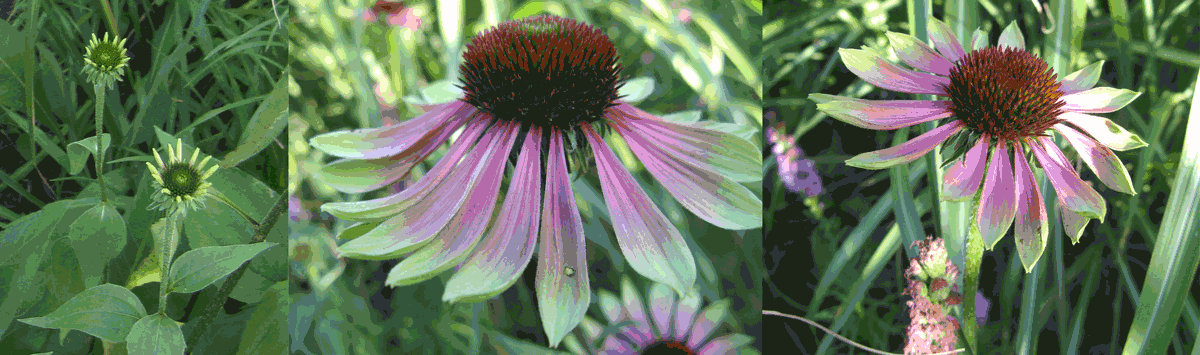
I thought I’d try to make a small quilt with sort of a ‘watercolor’ feel.  I started with these photos of coneflowers from my back yard.

After a lot of playing in Photoshop, I reduced the photos to this black and white ‘sketch’ — if I could only draw, this would have been done a lot faster.

I printed this on some cotton fabric and backed it with some stabilizer and then I experimented with different thread options for the leaves.

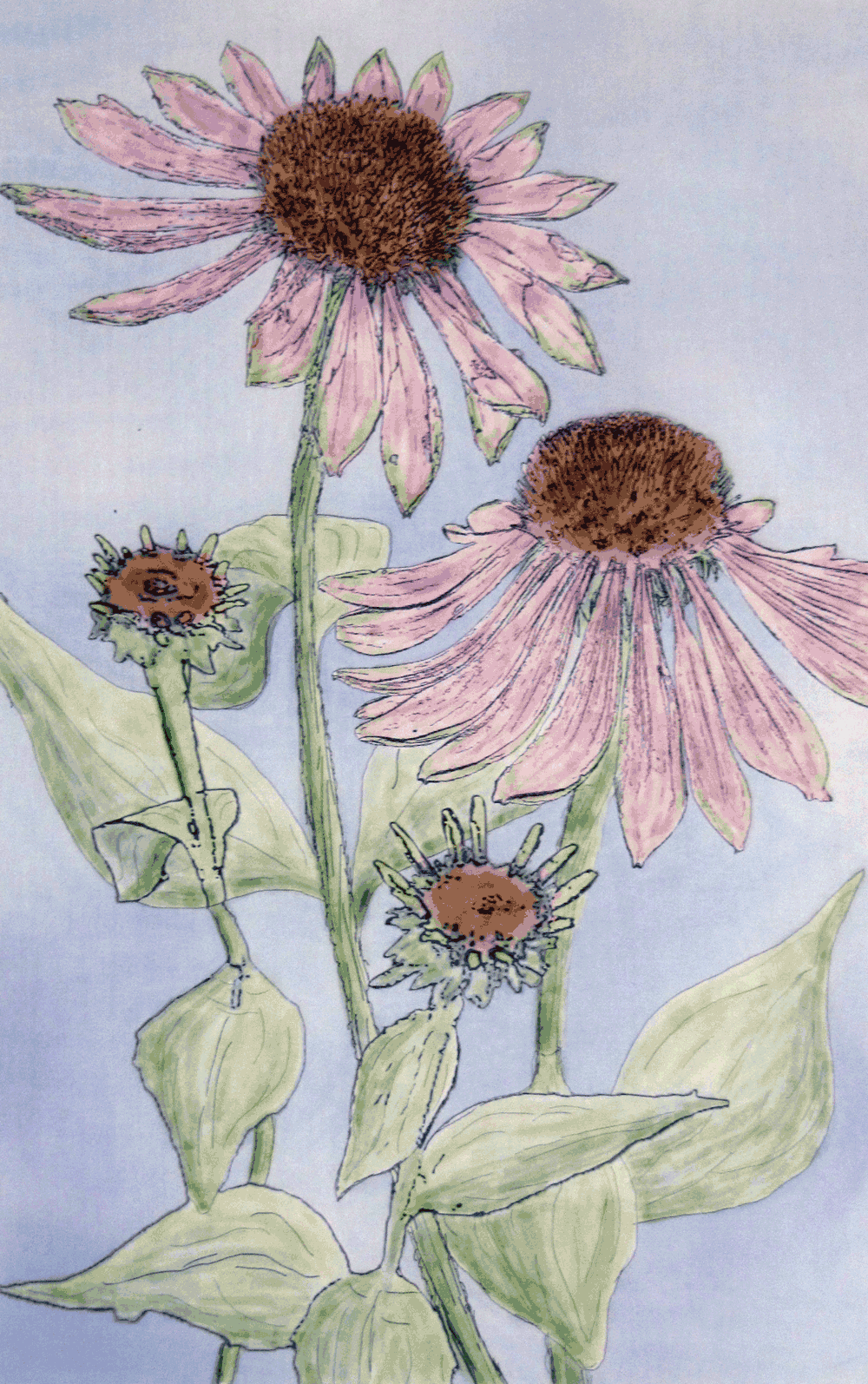
Even with stabilizer, and using a hoop while thread painting, the fabric was bunching up a bit.  Also, the white fabric showing through the thread wasn’t giving me the look I was after, so back to Photoshop.  I painted the sketch with multiple transparent layers to get a watercolor look.

Here’s the result after printing on fabric.

Before starting with the thread, I backed this with an ultra-firm stabilizer (peltex #72) and a backing layer of fabric.  I started the thread painting on the stems, and kept it fairly light, but when I got to the leaves, the thread started building up pretty heavily.

At this point I knew the ‘watercolor’ idea was long gone, but I was liking the heavy thread work, and at least a tiny bit of the fabric color was showing through.

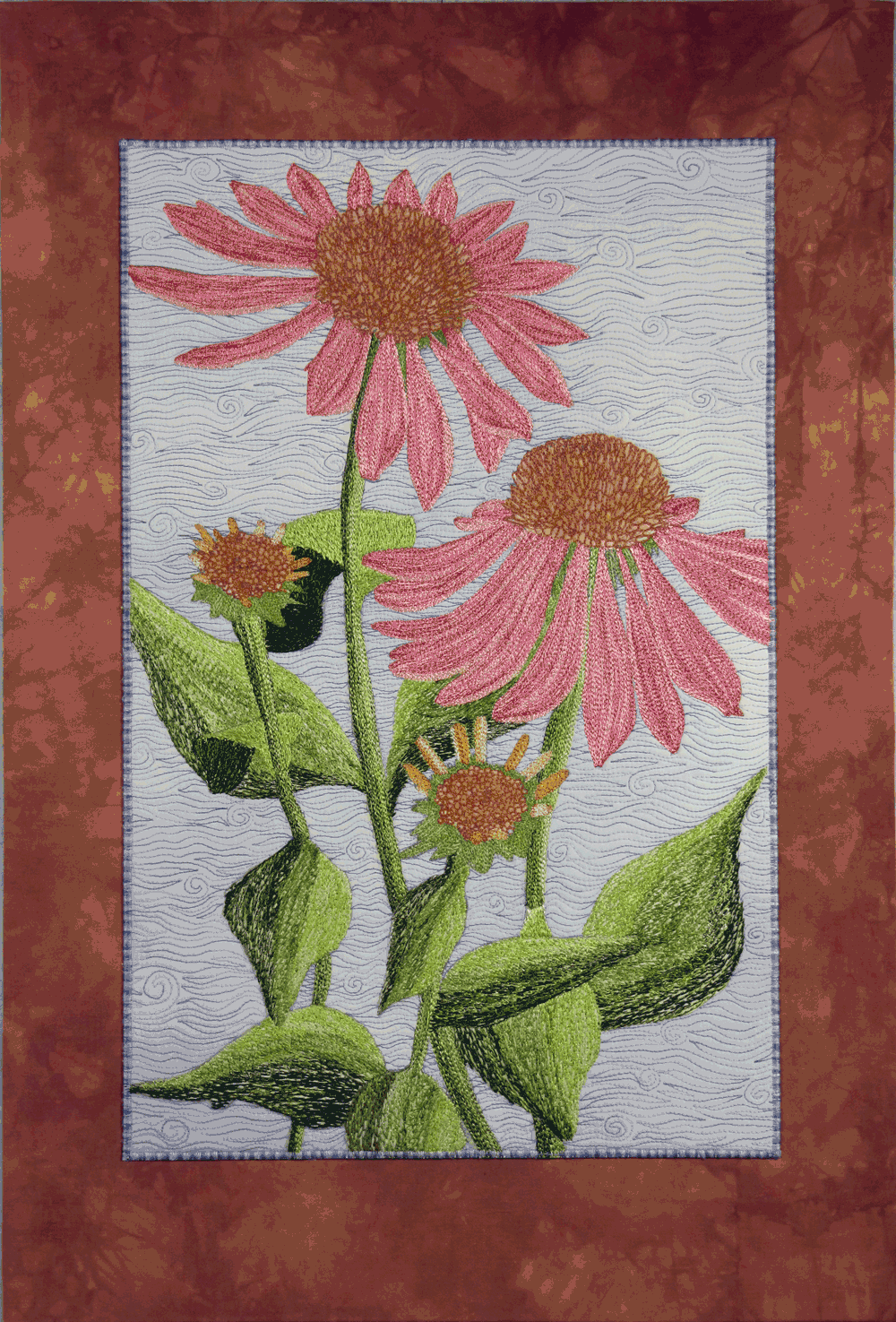
Here’s the finished quilt, Coneflowers.  It’s 17 inches wide by 25 inches long.

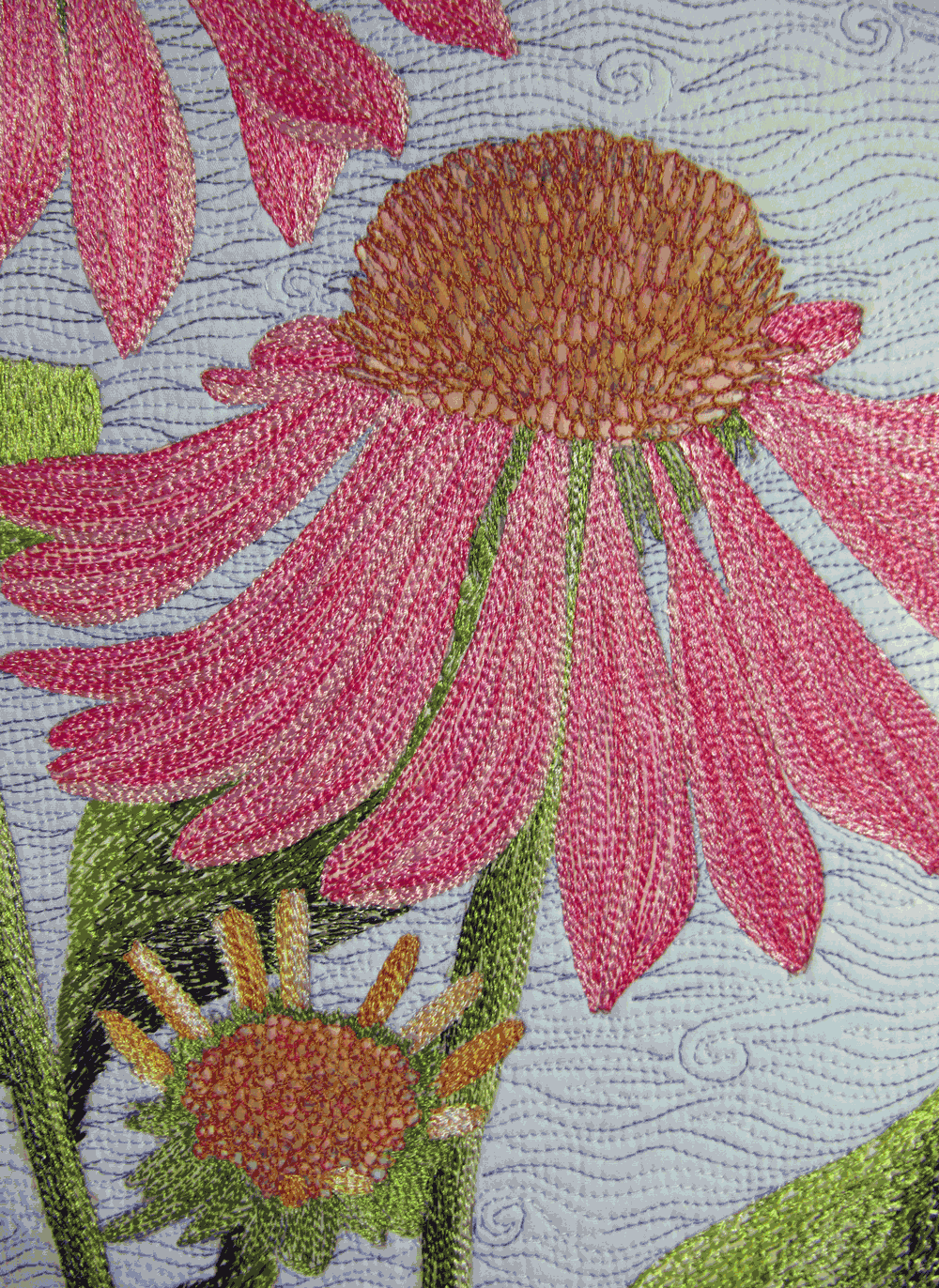
And here’s a detail view.

I really like how it turned out, though it’s nothing like I intended.  I think I might go back to the black and white sketch and try another version, but with much less thread work.

In honor of National Poetry Month, I wrote this haiku after working for hours on this thread painting:

Coloring with thread
Quilting or Embroidery?
Love all the texture.

Creating Your Own Plaids in Photoshop Elements

A plaid, or Tartan, pattern consists of criss-crossing bands of different color threads in the lengthwise (warp) and crosswise (weft) orientations.   The distinctive diagonal lines in  plaids are created by weaving in a twill pattern.  To create a plaid effect in Photoshop Elements we need to be able to mimic the twill weaving pattern.  Continue reading

Black and White Fabric Designs

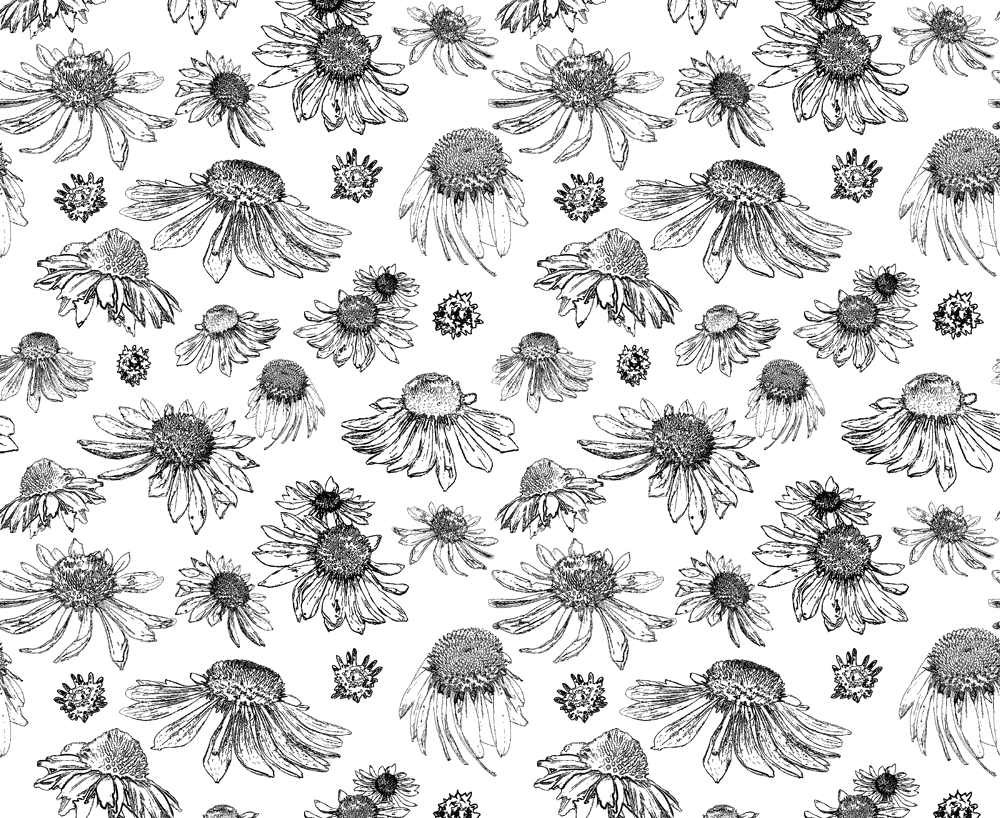
Spoonflower has a fabric design contest coming soon with a theme of black and white — the designs can only use black and white, no shades of gray allowed.

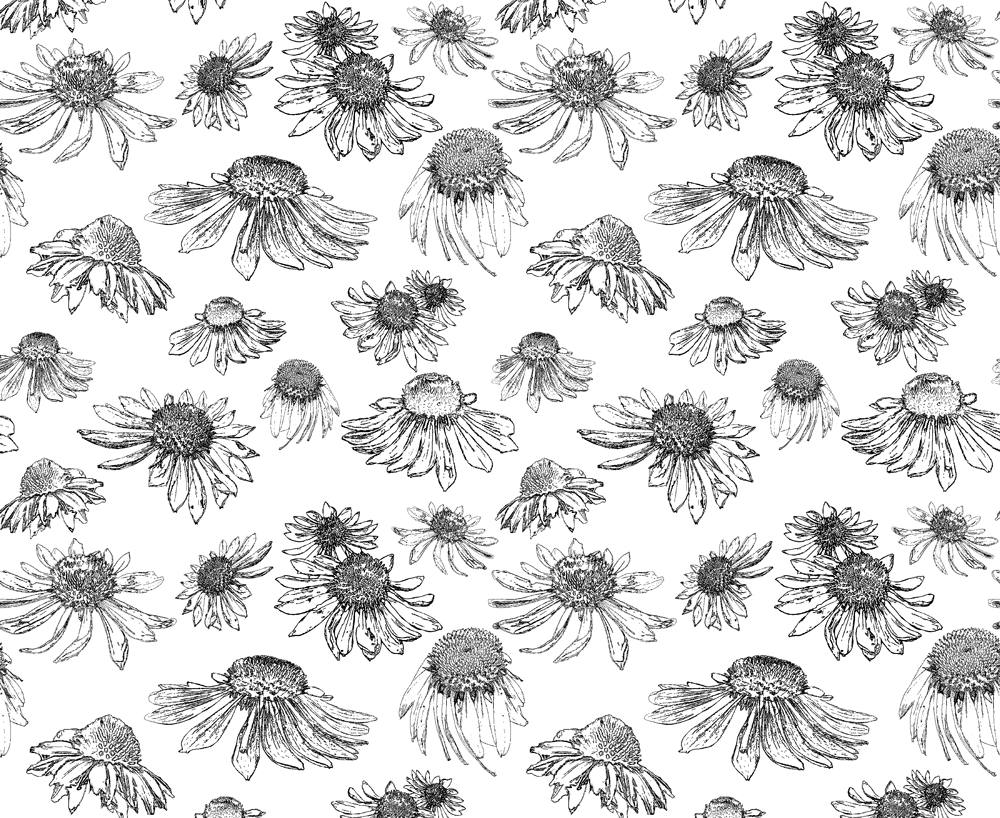
I’ve been playing with some of my photos of coneflowers, and converting them to look like pencil drawings.

Here are a couple of draft designs, both representing a fat quarter of fabric–22 inches by 18 inches.  This was my first attempt, but I think it’s a bit too busy, and some of the areas are too dark.

Here’s another version, with some of the elements taken out, and some of the lines lightened up a bit.  I like this one better, but I’ll probably rearrange the flowers a bit more.

I’ve also been working on a larger drawing to use in a quilt.  Here’s what I have so far.  My plan is to print this on white fabric and then add thread painting to get sort of a watercolor effect.

If you want to look at some great botanical art, check out Science-art.com and search on any keyword, such as coneflower.

More AAQI Quilts

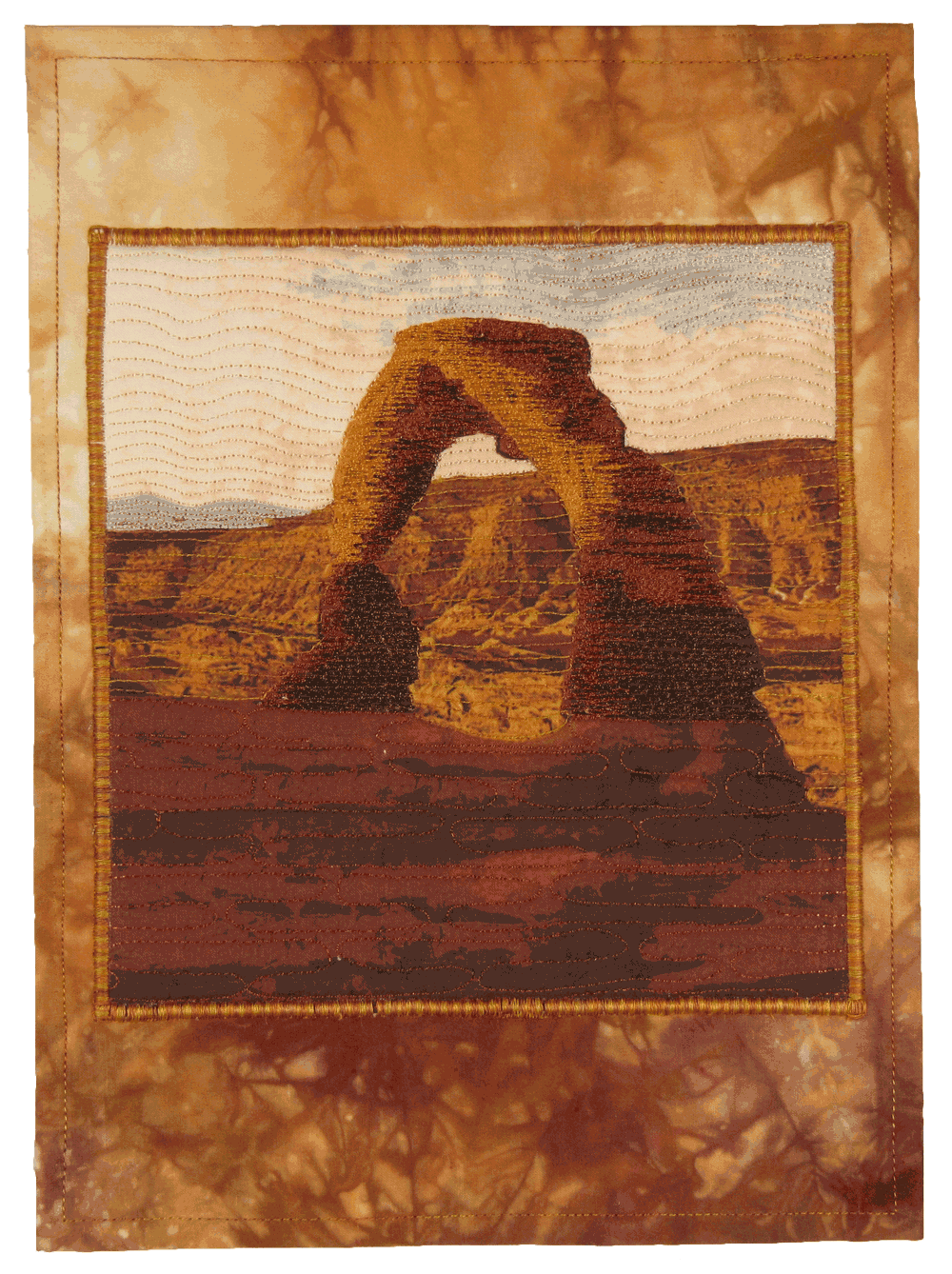
I finished the last 3 of my recent batch of small quilts for the AAQI. These each started as photo that I took and then played with in Photoshop before printing on fabric.  I finished each of these using the stabilizer ‘frame’ that I described in this post.  There’s a size limit of 9 by 12 inches on the AAQI quilts, otherwise I’d have made the frames a bit wider for each of these quilts.

Pink Daisy was actually a plain white daisy in my back yard, but the magic of Photoshop let me change the color.  I had fun playing with different free-motion quilting patterns on each of the petals.

I took this photo of Delicate Arch at about 6 a.m. on a blazingly hot summer day at Arches National Park.  The sunrise was beautiful and it even made it worth getting up at 4:30 and hiking 1.5 miles uphill to reach this spot.

Purple Orchid is from a photo of an orchid that I bought at Home Depot for about $10 several years ago.  It bloomed spectacularly for quite a while, but it’s been dormant for a couple years now.  Guess it might be permanently dormant at this point.

The splendor of the rose and the whiteness of the lily do not rob the little violet of its scent nor the daisy of its simple charm.  If every flower wanted to be a rose, spring would lose its loveliness. 

Therese of Lisieux

There are several ways of looking at Delicate Arch. Depending on your preconceptions you may see the eroded remnant of a sandstone fin, a giant engagement ring cemented in rock, a bow-legged pair of petrified cowboy chaps, a triumphal arch for a procession of angels, an illogical geologic freak, a happening—a something that happened and will never happen quite that way again, a frame more significant than its picture, a simple monolith eaten away by weather and time and soon to disintegrate into a chaos of falling rock.

Edward Abbey


Two New Small Quilts for AAQI

I was away at a quilt retreat for a few days this week with some amazing quilters.  A few of them have web sites, and they’re worth a look — Wendy’s art quilts, Stephanie’s wearable art, and Lois who’s known for rust dyeing.  We had a great time and all got a lot of work done.  I spent my time quilting/thread painting a number a small quilts and finished quilting six, but I left the binding/finishing work for after the retreat.

I’ve now completed the first two which I’ll donate to AAQI.  Both of these quilts started as photos that I took, edited in Photoshop and then printed on fabric.  I don’t particularly like binding quilts, especially small ones, so I thought I’d try some different techniques to see which I liked best.  For this first quilt, I took 1.25 inch strips of the purple fabric with fusible on the back (I used Steam a Seam since that’s what was handy).  I fused about a half inch to the front of the quilt and then turned it to the back and fused the rest.  (You can see more complete directions at Laura Wasilowski’s web site.)  I finished the binding with a double blanket stitch along the fused border.  Here’s Dahlia.

For the second quilt, I thought I’d give it a bit of a frame.  For this I used some Pellon Peltex 72 which is a very thick, stiff, ultra-firm stabilizer with fusible on both sides.  I started with a 9 by 12 inch piece of the Peltex and wrapped the orange fabric around it.  I then cut another piece of Peltex a half-inch smaller than the quilt and I used it to fuse the quilt to the orange ‘frame’.  I then satin stitched around the quilt.  I really like the end result — it’s stiff enough to hang on the wall, and the extra layer of Peltex behind the quilt gives it more dimension.  Here’s Daylily #2.

I hate flowers – I paint them because they’re cheaper than models and they don’t move.
Georgia O’Keeffe

Weeds are flowers too, once you get to know them.
A. A. Milne

Project Selvage – My Entry

Spoonflower and Michael Miller Fabrics got together to sponsor a fabric design contest, called Project Selvage.  The challenge was to design a fabric for baby boys.  The winner of the contest will earn a contract with Michael Miller to produce a collection.  The designs were due to Spoonflower by March 24.  I’m not sure, but it seems that there may have been over 1000 designs submitted (you can look through all these designs here.)  From these many designs Spoonflower and Michael Miller will select 75 semifinalists, which will be announced March 31, and then voting will start in order to narrow the field to 10 finalists.

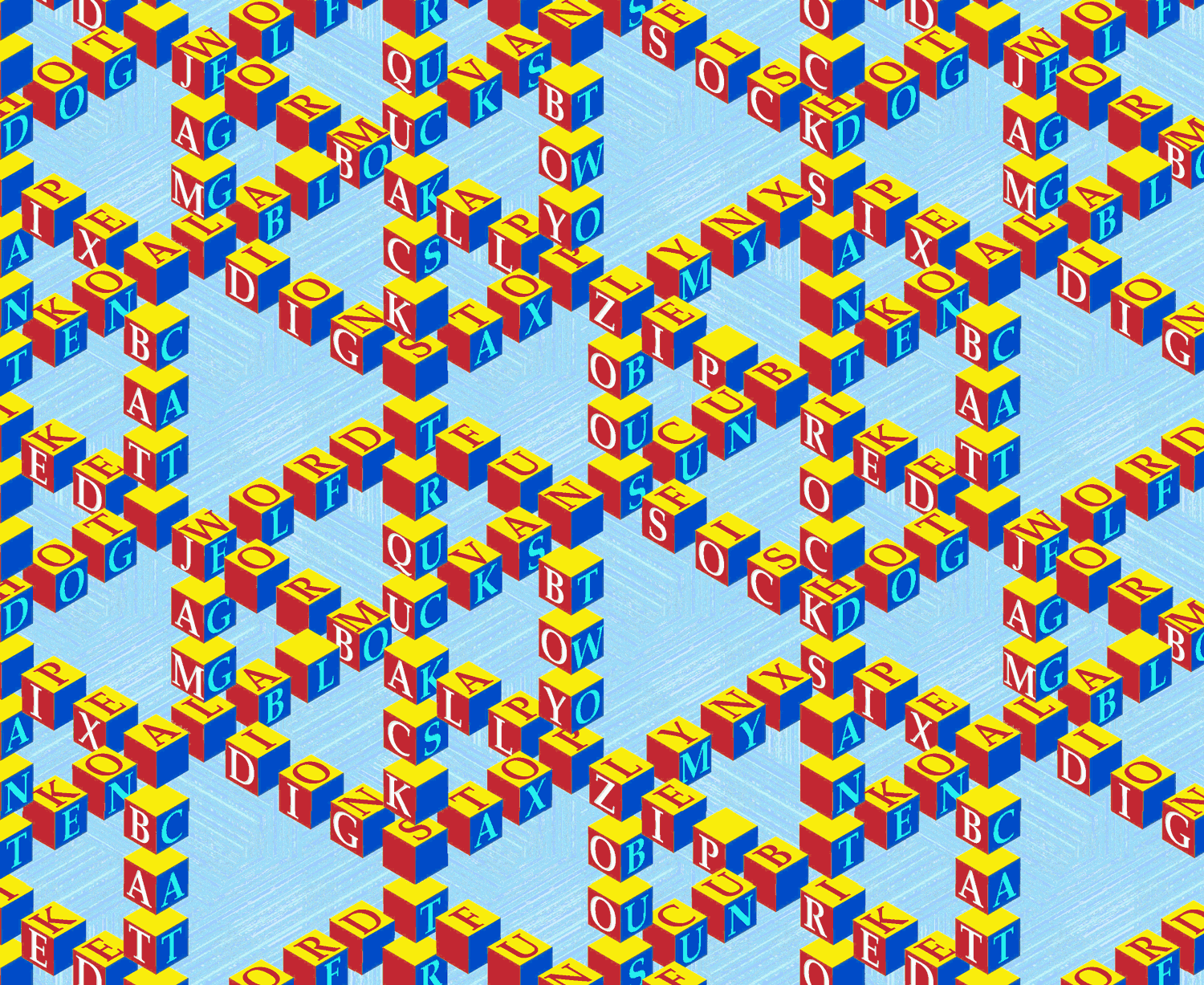
I wanted to design something for this contest, but though I came up with dozens of possibilities, none seemed the least bit unique.  I was toying with the idea of blocks, and I remembered a couple quilts I made with an Escher-like pattern of blocks, which create an optical illusion.  Here’s one of the small quilts.

I thought this might be an idea I could work with, so I went to Adobe Illustrator and started drawing the shapes for the blocks.  I came up with this repeat pattern pretty quickly.

I liked the pattern, but thought it needed more, so I went into Photoshop and started adding letters on the blocks to make words, and then more words…I wanted to make sure I used all the letters in the alphabet.  I made a few other changes–changed the green block face to red and added a background.  Here’s the final entry, shown as a fat quarter.

This was a lot of fun to play with, but I’m not sure how this will do in the contest–this is definitely a large-scale design so it works for some things, but not for others, such as baby clothing.

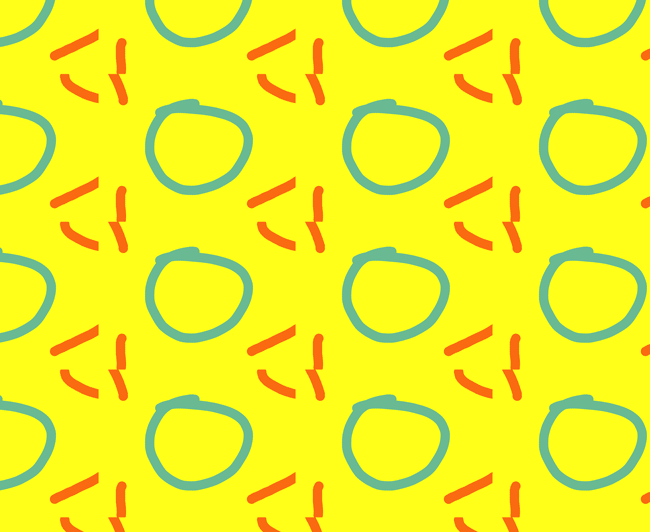
I figured out how to make it more sell-able through Spoonflower if it doesn’t do well in the contest.  Since there are so many blocks in the pattern, it’s easy enough for me to personalize the fabric design by adding a name into the pattern.  The example below shows the pattern for “Michael” (white letters on red blocks).
Good luck to everyone who entered the contest–there are a lot of amazing “baby boy” designs.

My father used to play with my brother and me in the yard. Mother would come out and say, “You’re tearing up the grass”; “We’re not raising grass,” Dad would reply. “We’re raising boys”.
Harmon Killebrew

Diaper backward spells repaid. Think about it.
Marshall McLuhan

Making a Repeat Pattern Look Less Boxy – Photoshop Elements

If you’re designing a repeat pattern in Photoshop Elements, there’s an easy way to make it look less boxy.  The trick is to have design elements which overlap the edges of the tile.

I started with this simple tile.  Each of the design elements is in its own layer in Photoshop.  The tile creates this repeat pattern — there’s clear space between the tiles.

Since each element is in its own layer, I can use the offset command (from the menu:  Filter –>Other –> Offset) to independently move each element.  You can play around with the level of offset to move any element so that it wraps around the tile horizontally, vertically or both.  When you input an amount of offset, a positive number will move the element right or down, and a negative number will move it left or up.  The big benefit of using the offset command is that you can draw/edit an individual design element in its entirety, and then later split it up across the edges of the tile.

Here’s a quick update to the original tile where I moved some of the elements (and also changed the size of some elements).  And here’s the resulting repeat which looks less boxy.
A couple things to keep in mind when using this.  The offset command shifts the entire layer in Photoshop Elements, so it works best if your overall design is in multiple layers which you can shift independently.  Any editing you want to do to your design is much easier to do before using the offset command.  If you want to edit a design after offsetting it, you will usually need to undo the offset before making the edits.

Design is a plan for arranging elements in such a way as best to accomplish a particular purpose — Charles Eames

How to Create A Half-Drop Repeat in Photoshop Elements

In the last two tutorials I showed how to make a seamless repeating pattern in Photoshop Elements.  In this one I’ll show a quick way to make half-drop repeats.  Half-drop repeats add a diagonal line to any pattern, such as the polka dots shown below.

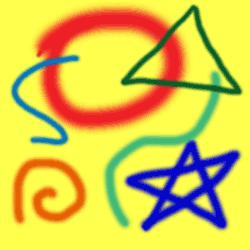
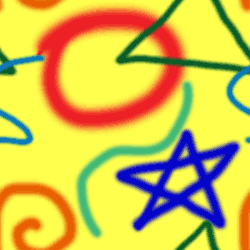
1.  For this repeat to work, you really need a solid color in the background, and you don’t want parts of the image touching an edge.  I’ll start with this basic tile.  Its size is 200 pixels by 200 pixels.

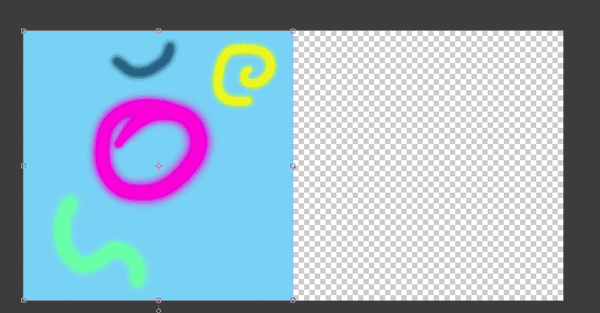
2.  To create the half-drop, we need to add a duplicate tile and then offset it.  So, the first step is to double the width of the ‘canvas’.  This is done from the menu: Image –>Resize –>Canvas size, and then the box shown below pops up.  In the “new size” section, if you set the measurement to ‘percent’ (circled in yellow), then make the width 200 percent.  Alternatively, you can set the measure to ‘pixels’ and set the width to twice as wide as the current size.  In the “anchor”area (yellow arrow), click so that the box looks like that shown below.  This will put the original tile on the left side of your new canvas.

This is what the new canvas looks like in Photoshop.

3.  Next, duplicate the layer (from the menu:  Layer –> Duplicate Layer), and then offset this new layer.  From the menu:  Filter –> Other –> Offset.  For the horizontal offset, enter the full width of your original tile (200 pixels for my tile).  For the vertical offset, enter half of the original height of your tile (100 pixels in my example).  Shown below is the Offset dialog box and then the resulting tile.

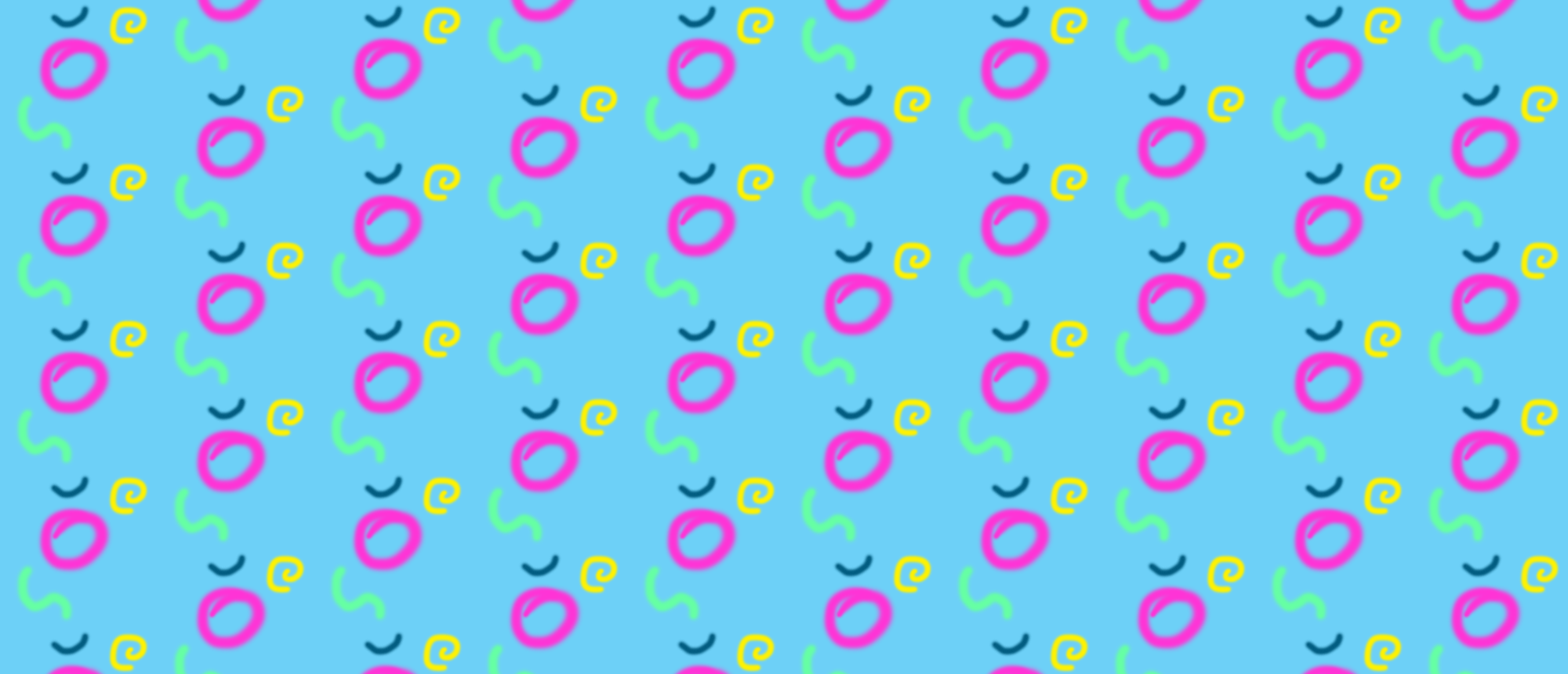
4.  From this, you can define your pattern and create the repeat (see Tutorial 1, step 6 for directions).  This is the resulting repeat.

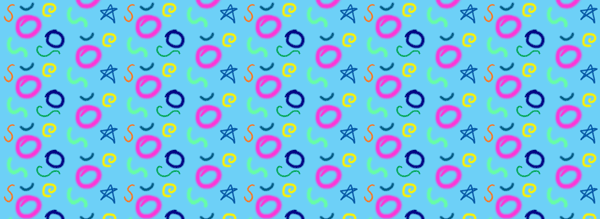
5.  One of the fun things you can do is add designs to the tile created in step 3.  Here I’ve drawn in some additional elements.  When I put this tile into a repeat, the new elements will repeat in a straight repeat while the original elements are in a half-drop repeat (compare the repeat of the blue star to the pink circle).  The repeat is shown below.

Also, with this method, you aren’t limited to creating half-drop repeats.  In step #3 you can specify the vertical offset to be any portion of the vertical size…1/3, 1/4, etc.

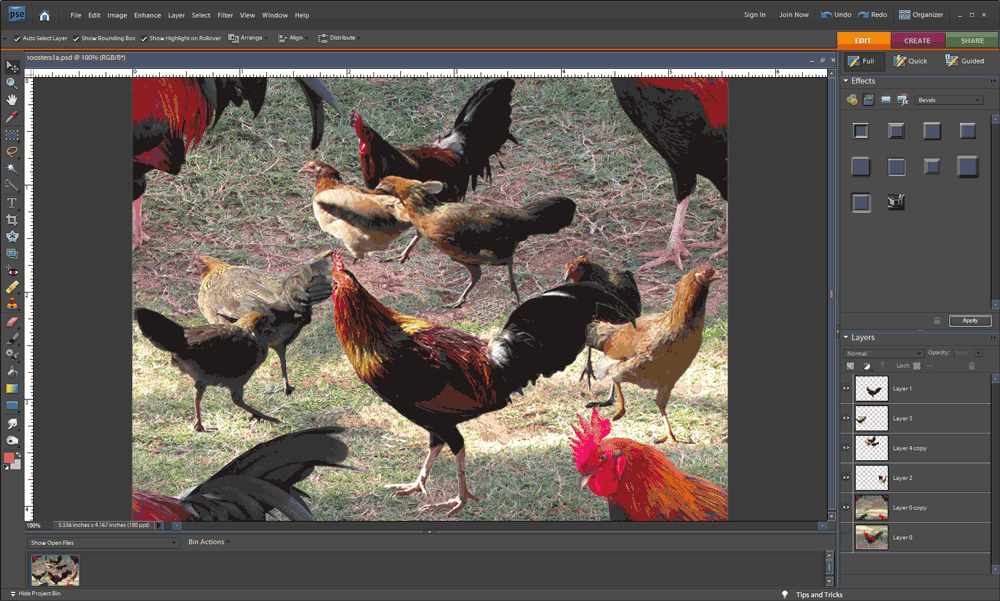
Here’s an example where I recently used a half-drop repeat.  Starting with the crazy Kauai rooster photos from the previous post, I removed the background and hand colored the birds in funky colors.  I call this Kauai Breakfast because it reminds me of breakfast on the beach in Kauai, surrounded by roosters and hens.

How to Create a Seamless Repeat in Photoshop Elements – Part 2

In part 1 I showed how to create a seamless repeat by editing the edges of a tile so that they line up properly when repeated.  There’s another useful way to disguise the edges, and that’s to add new images that go across the edges of the old tile.

1.  Here’s a simple example of this.  I’ll start with the tile below.

2.  Next is to”cut” the tile in half both horizontally and vertically and “paste” it back together.  This is done in Photoshop Elements using the Filter –>Other –> Offset command.  (See the previous post, step 3 for details of how to do this.)  Here’s the result.

3.  I could use the techniques from Part 1 of this tutorial to get the orange lines to meet at the edges so that the repeat would be seamless.  Alternatively, I could just cover up the orange lines with something that goes across the edges.  Here I drew a square to cover up the lines.

4.  Here’s what the two tiles look like in repeat.

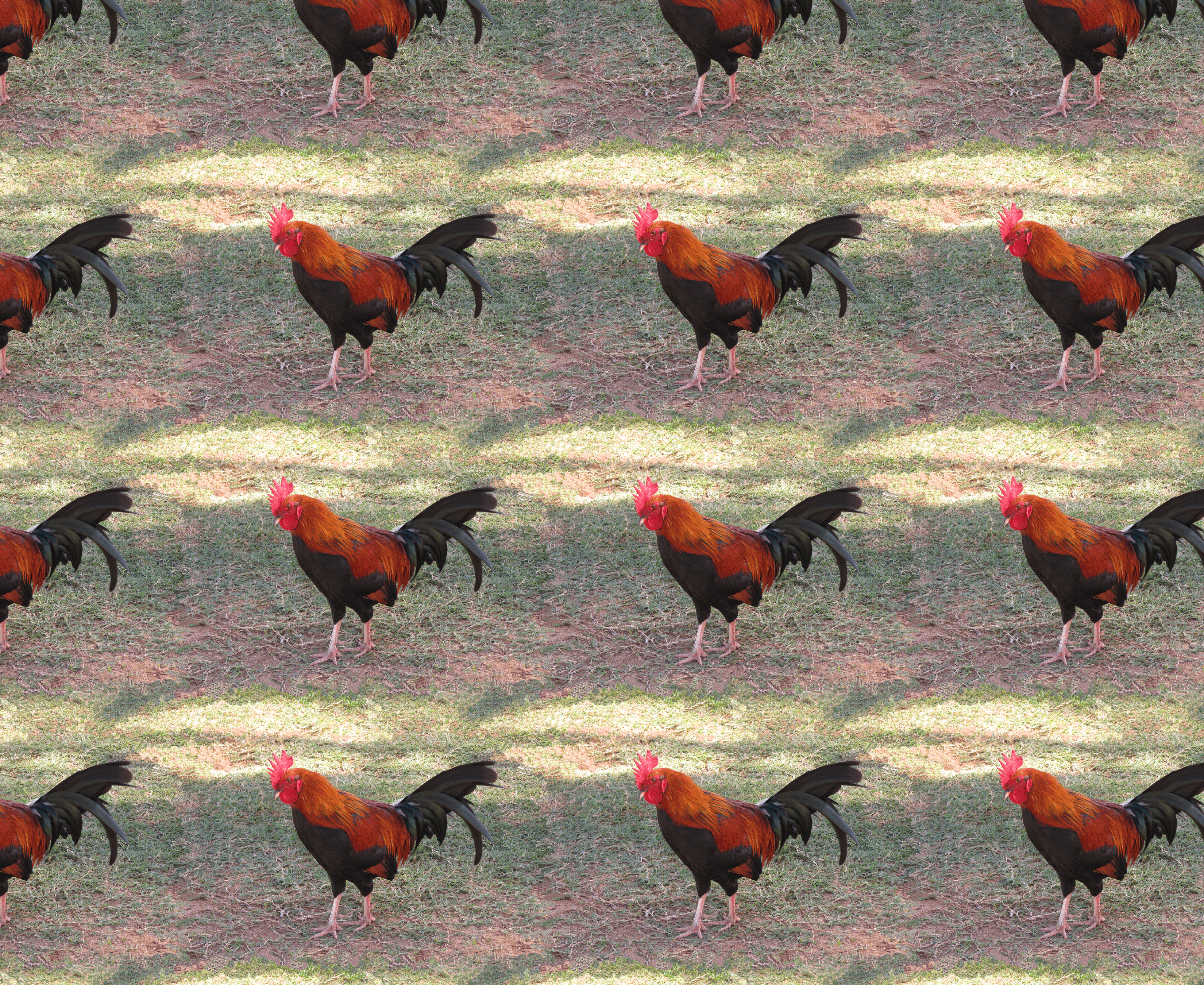
Both techniques — fixing the edges and covering the edges — can be use to create a richer repeat pattern.  I’ll show this with the rooster image I created in Part 1 of the tutorial.  Here’s the repeat pattern after the edges were fixed.  The repeat is seamless, but there’s a lot of ‘blank’ background in the pattern.  I’ll fill this in with rooster and hen images from other photos.

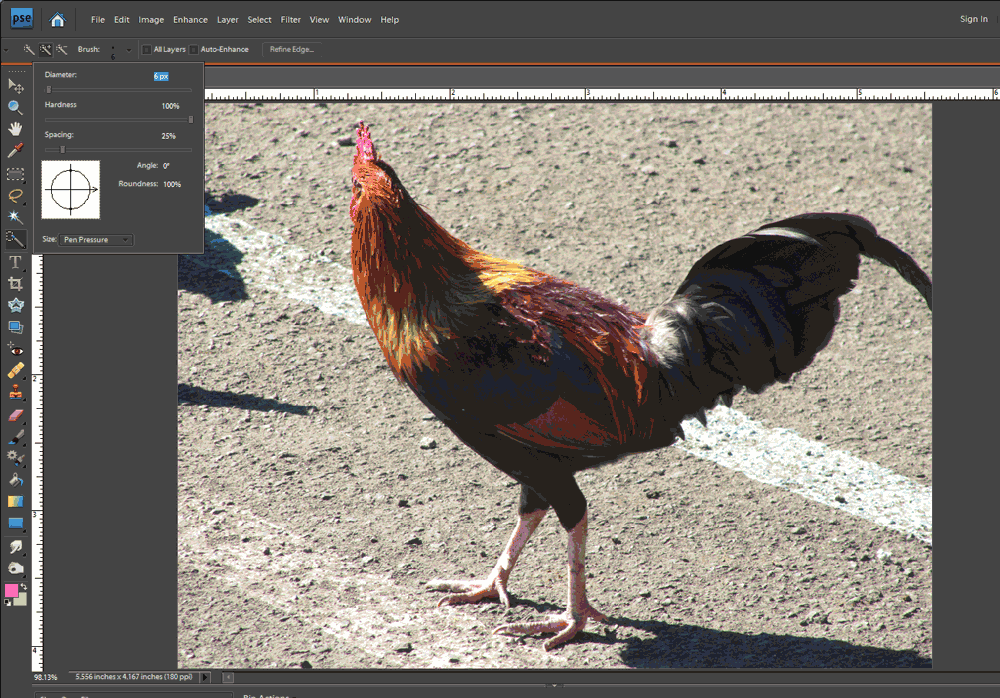
1.  Start by opening another photo with an image you want to add to the pattern.  Here’s a second rooster photo, and I’m going to use the Quick Selection Tool to select only the rooster and not the background.

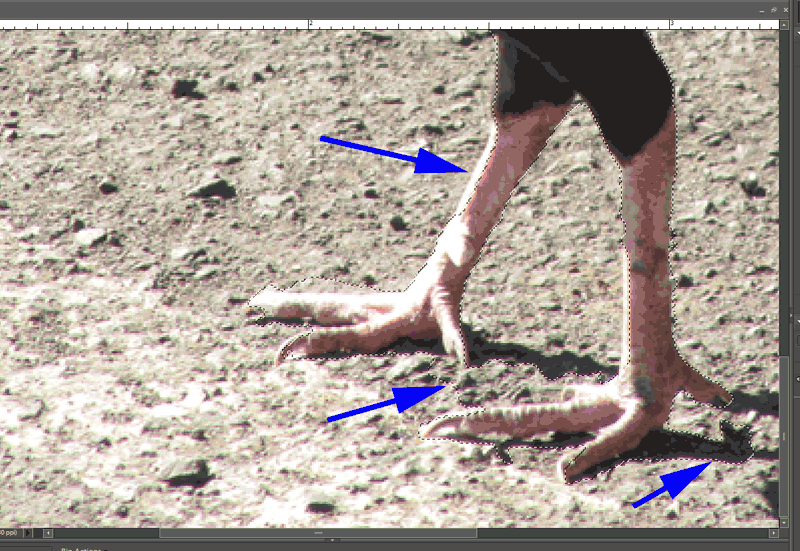
2.  After quickly selecting the rooster, here’s a screen shot where the dotted lines show the rough selection.  As highlighted by the purple arrows, there are some areas that need to be refined.

3.  Refine your selection until only the object you want to copy is selected.  The way to do this with the quick selection tool is to use the “Add to Selection”  and “Subtract from Selection” tools to nudge the selection line as needed (circled on the menu pictured to the right).  It can also be helpful to decrease the brush size when you’re trying to make fine adjustments to the selection.

4.  Once your selection is good, copy it to the clipboard using the Edit –>Copy menu command.

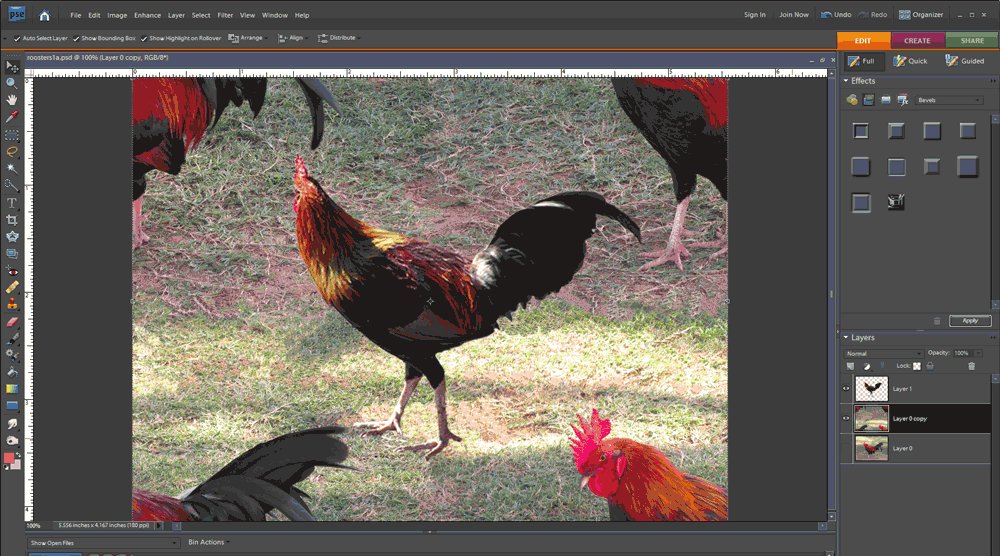
5.  Go to the file that has your original tile and use the Edit –>Paste command.  This will put your copied image into your file in its own layer, which is important so that you can move it around and change its size without changing the original tile.  Here’s a picture of the new rooster copied into the original image.

This would create the repeat pattern shown below.  Note how the second rooster image helps disguise the edges of the repeat tile.  (See Tutorial Part 1, step 6 for details of creating the repeat.)

6.  If you want to add more images, repeat steps 1 through 5.  Move the new images around to get an arrangement you like.  Here’s a version with 4 added images of roosters and hens.

And here it is in repeat.  As Ludwig Mies van der Rohe said, sometimes less is more.