
In part 1 I showed how to create a seamless repeat by editing the edges of a tile so that they line up properly when repeated. There’s another useful way to disguise the edges, and that’s to add new images that go across the edges of the old tile.
1. Here’s a simple example of this. I’ll start with the tile below.

2. Next is to”cut” the tile in half both horizontally and vertically and “paste” it back together. This is done in Photoshop Elements using the Filter –>Other –> Offset command. (See the previous post, step 3 for details of how to do this.) Here’s the result.

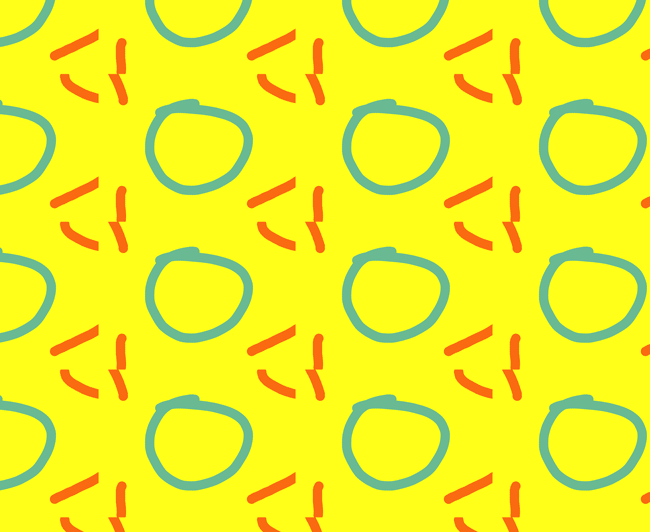
3. I could use the techniques from Part 1 of this tutorial to get the orange lines to meet at the edges so that the repeat would be seamless. Alternatively, I could just cover up the orange lines with something that goes across the edges. Here I drew a square to cover up the lines.

4. Here’s what the two tiles look like in repeat.

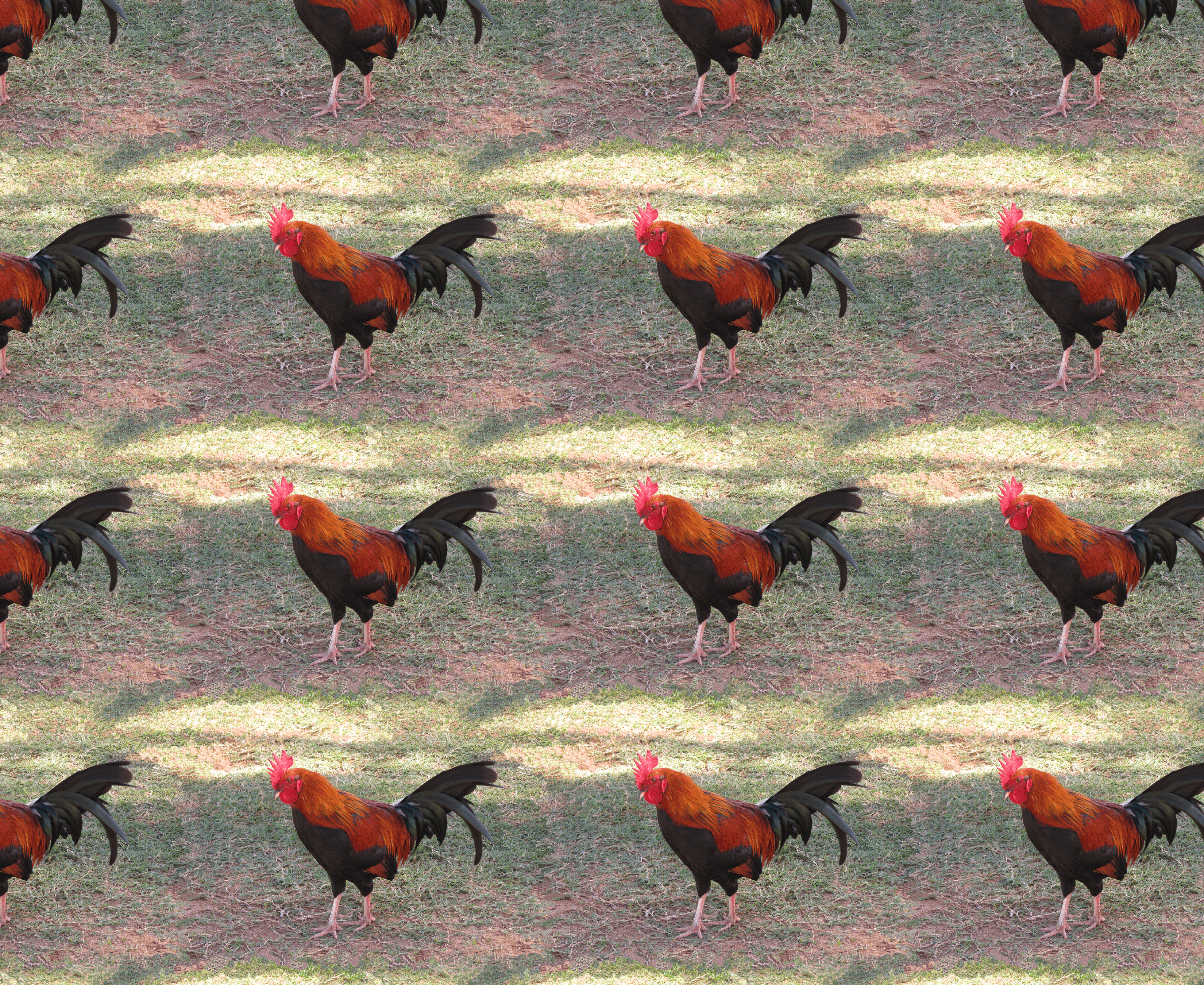
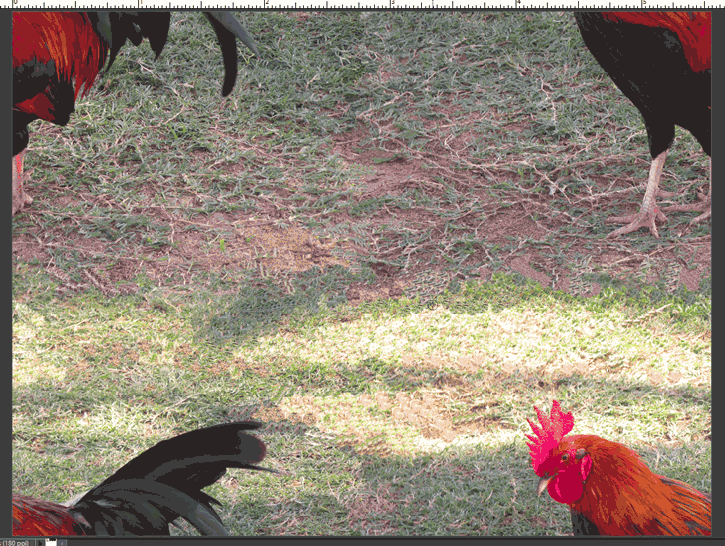
Both techniques — fixing the edges and covering the edges — can be use to create a richer repeat pattern. I’ll show this with the rooster image I created in Part 1 of the tutorial. Here’s the repeat pattern after the edges were fixed. The repeat is seamless, but there’s a lot of ‘blank’ background in the pattern. I’ll fill this in with rooster and hen images from other photos.
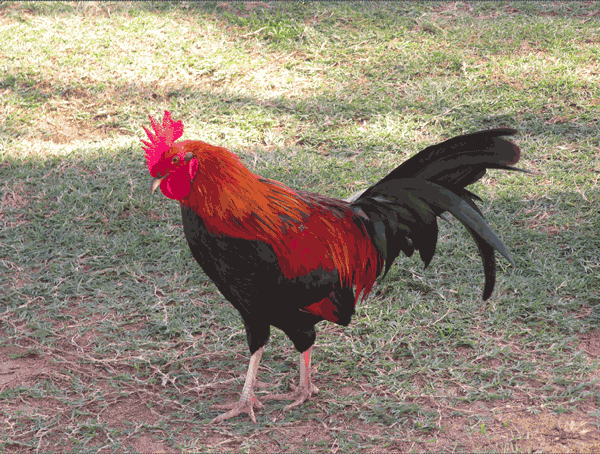
1. Start by opening another photo with an image you want to add to the pattern. Here’s a second rooster photo, and I’m going to use the Quick Selection Tool to select only the rooster and not the background.
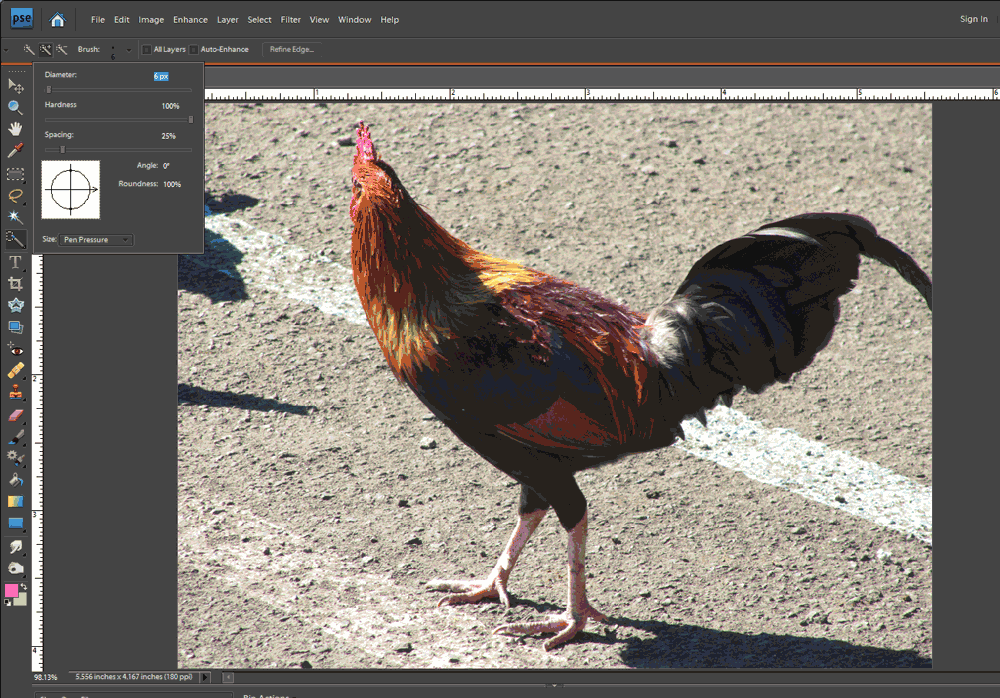
2. After quickly selecting the rooster, here’s a screen shot where the dotted lines show the rough selection. As highlighted by the purple arrows, there are some areas that need to be refined.
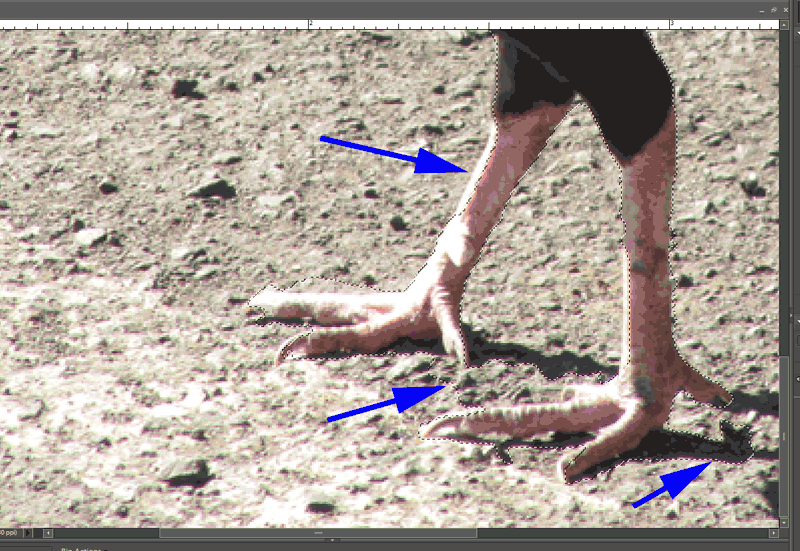
3. Refine your selection until only the object you want to copy is selected. Th e way to do this with the quick selection tool is to use the “Add to Selection” and “Subtract from Selection” tools to nudge the selection line as needed (circled on the menu pictured to the right). It can also be helpful to decrease the brush size when you’re trying to make fine adjustments to the selection.
4. Once your selection is good, copy it to the clipboard using the Edit –>Copy menu command.
5. Go to the file that has your original tile and use the Edit –>Paste command. This will put your copied image into your file in its own layer, which is important so that you can move it around and change its size without changing the original tile. Here’s a picture of the new rooster copied into the original image.
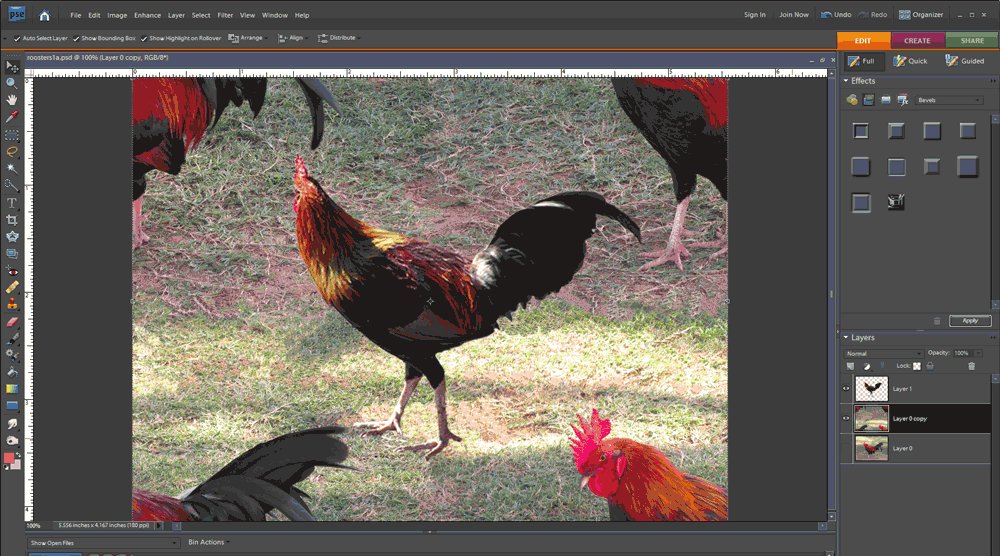
This would create the repeat pattern shown below. Note how the second rooster image helps disguise the edges of the repeat tile. (See Tutorial Part 1, step 6 for details of creating the repeat.)

6. If you want to add more images, repeat steps 1 through 5. Move the new images around to get an arrangement you like. Here’s a version with 4 added images of roosters and hens.
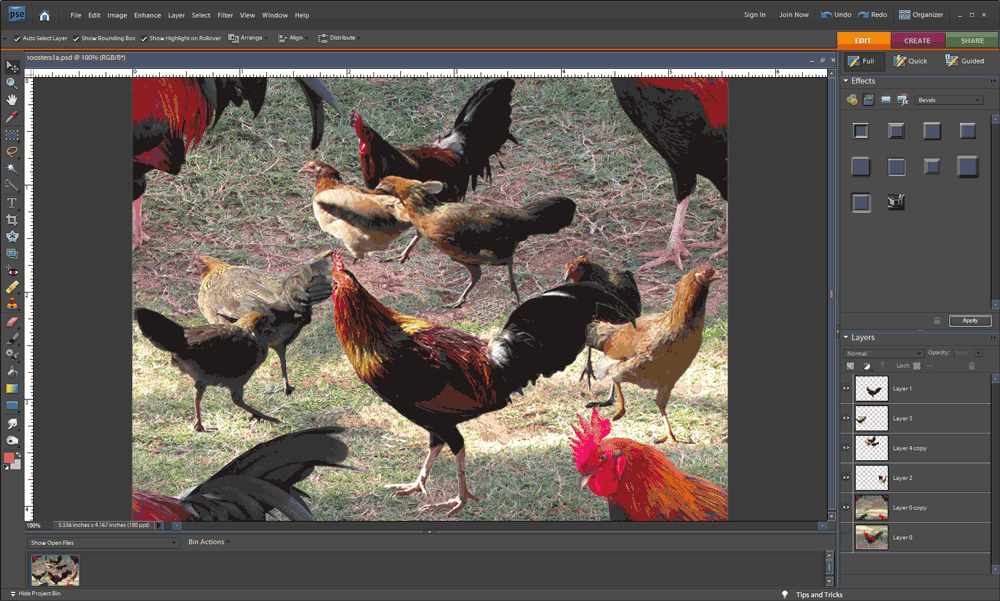
And here it is in repeat. As Ludwig Mies van der Rohe said, sometimes less is more.





 Color On Cloth